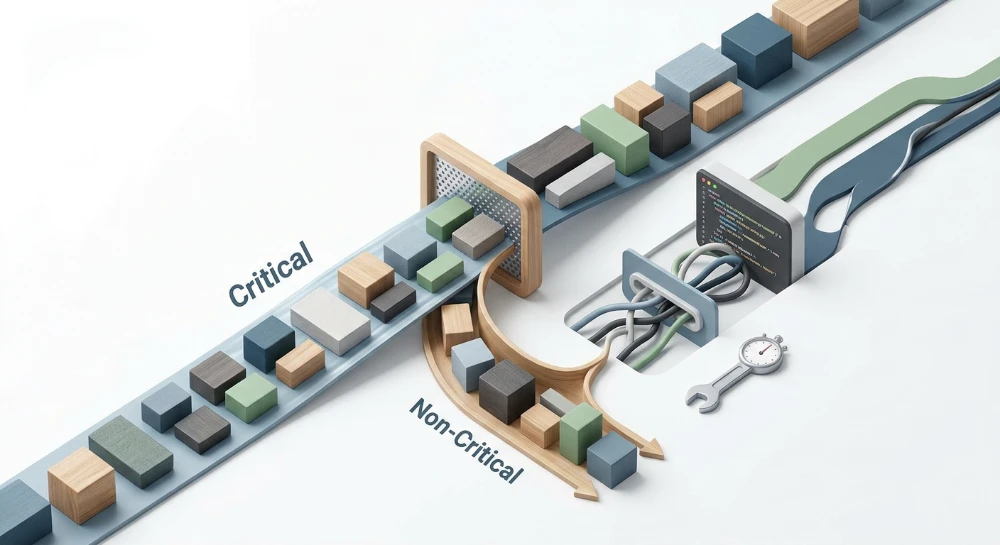
Render-blocking resources are external stylesheets and synchronous JavaScript files that pause the browser from painting content to the screen. When a browser encounters these assets in the document head, it halts rendering-and in the case of synchronous scripts, stops parsing HTML entirely-until the files are downloaded, parsed, and executed. Learning how to reduce render-blocking resources is primarily an exercise in separating assets required for the initial viewport from those that can wait.
Because the browser cannot display pixels while waiting on these files, render-blocking code directly delays initial rendering metrics, specifically First Contentful Paint (FCP) and Largest Contentful Paint (LCP). While resolving these bottlenecks can contribute to better Core Web Vitals scores and user experience, the actual impact on page speed and search performance depends on the broader page architecture, server response times, and how the primary content is loaded.
Effective optimization does not mean deferring every stylesheet and script blindly. Aggressive deferral can break JavaScript dependency trees, trigger a Flash of Unstyled Content (FOUC), or delay the discovery of the LCP element itself. The practical objective is to inline or prioritize the minimum CSS and JavaScript needed to render the above-the-fold layout cleanly, while deferring, asynchronously loading, or removing non-essential code.
How the critical rendering path works and why resources block it
The Critical Rendering Path (CRP) is the deterministic sequence of steps a browser executes to convert HTML, CSS, and JavaScript bytes into rendered pixels on the screen. Understanding where external files interrupt this pipeline explains why stylesheets and scripts require different optimization strategies.
- Document Object Model (DOM) construction: As the browser receives the HTML response, the HTML parser reads the markup sequentially from top to bottom, converting tags into tokens and assembling them into a tree of DOM nodes.
-
CSS Object Model (CSSOM) construction: When the HTML parser encounters a
<link rel="stylesheet">or inline<style>block, it parses the CSS rules into a separate tree structure that maps styles to specific selectors. -
Render Tree assembly: Once both the DOM and CSSOM are ready, the browser combines them into the Render Tree. This tree includes only the visible nodes required to render the page, omitting non-visual elements such as
<head>tags, script elements, and nodes styled withdisplay: none. - Layout and Paint: The browser calculates the exact geometry, size, and position of each node in the Render Tree (Layout) and then rasterizes those elements into actual pixels on the screen (Paint).
Render-Blocking CSS vs. Parser-Blocking JavaScript
Although performance diagnostics frequently group stylesheets and scripts together under the label of render-blocking resources, they interrupt the Critical Rendering Path through different mechanisms.
| Resource Type | Primary Mechanism | Effect on HTML Parser | Effect on Rendering Pipeline |
|---|---|---|---|
External CSS (Standard
<link rel="stylesheet">
)
|
Render-blocking | Does not pause HTML parsing; the browser continues building the DOM while the stylesheet downloads. | Blocks Render Tree assembly and painting until the CSSOM is completely constructed. |
Synchronous JavaScript (
<script>
without
async
or
defer
)
|
Parser-blocking (and consequently render-blocking) | Halts HTML parsing and DOM construction immediately until the script is downloaded, parsed, and executed. | Prevents downstream DOM nodes from being discovered and blocks the Render Tree by stalling DOM completion. |
CSS is render-blocking by default because CSS rules cascade and can override previous declarations. If a browser painted the DOM before finishing the CSSOM, the user would see raw, unstyled HTML jump into a styled layout moments later. To prevent this Flash of Unstyled Content (FOUC), the browser holds back the Render Tree until every discovered stylesheet applicable to the current device context has been downloaded and parsed.
Synchronous JavaScript-specifically a
<script>
tag in the document without an
async
or
defer
attribute-is parser-blocking. When the HTML parser reaches a synchronous script, it must stop building the DOM completely. This behavior exists because JavaScript can use methods like
document.write()
to inject raw HTML directly into the document stream or manipulate existing DOM nodes. Because the browser cannot predict whether the script will alter the markup that follows, it pauses the HTML parser, waits for the script to download over the network, compiles and executes it on the main thread, and only then resumes parsing the rest of the HTML document.
How CSS and synchronous JavaScript compound delays
The performance penalty increases significantly when a synchronous script is placed after an external stylesheet in the document
<head>
. In addition to reading or modifying the DOM, a script can query the computed styles of an element using APIs like
getComputedStyle()
or modify the CSSOM directly.
<head>
  <link rel="stylesheet" href="/styles/main.css">
  <script src="/scripts/app.js"></script>
</head>
When the browser encounters this sequence, it cannot execute
app.js
while
main.css
is still downloading or parsing, because the script might request style information that depends on the completed CSSOM. Even if
app.js
is already downloaded and cached locally, the browser delays its execution until
main.css
finishes building the CSSOM. Because
app.js
is synchronous, this wait forces the HTML parser to remain paused as well. Under this condition, a slow-loading stylesheet does not merely block painting-it actively blocks JavaScript execution and halts HTML parsing for the rest of the document.
Run a deep technical crawl to identify 4xx errors, missing meta tags, and indexation blockers.
Identifying Render-Blocking assets and measuring unused code
Before changing how stylesheets or scripts load, you need an accurate inventory of which files actually delay the initial paint and how much of their code is required to render the initial viewport. Auditing tools and browser developer panels provide three distinct layers of diagnostic data: automated heuristic flags, exact main-thread timeline traces, and byte-level code execution coverage.
Automated diagnostics with lighthouse and PageSpeed insights
PageSpeed Insights and the Lighthouse panel in Chrome DevTools offer the fastest initial scan for blocking assets. Under the diagnostics section of a Lighthouse report, the "Eliminate render-blocking resources" audit lists the specific CSS and JavaScript URLs that delayed the First Contentful Paint (FCP) of the tested page, along with their transfer sizes and estimated potential time savings.
Lighthouse identifies these files using specific rules rather than analyzing what the code inside them actually does:
-
A
<script>tag is flagged if it is located in the document<head>and lacks anasyncordeferattribute. -
A
<link rel="stylesheet">tag is flagged if it lacks adisabledattribute or amediaattribute that fails to match the user's current device environment.
Because automated audits rely on markup heuristics, they treat every flagged URL as a candidate for deferral rather than a confirmed non-critical asset. If a flagged stylesheet contains the layout grid for the main navigation, or a flagged script initializes the hero banner, blindly deferring the entire file based solely on a Lighthouse warning will break the visual presentation of the initial viewport. Use the Lighthouse report to generate a list of candidate URLs, then inspect their runtime behavior in Chrome DevTools.
Inspecting the network waterfall in the chrome DevTools performance panel
To observe the exact interaction between network downloads, HTML parsing, and screen paints, record a page load trace in the Chrome DevTools Performance panel. Unlike the basic Network panel, the Performance panel correlates network requests directly with main-thread activity and visual rendering milestones.
- Open Chrome DevTools in an incognito window (to prevent browser extensions from injecting scripts into the trace) and navigate to the Performance panel.
- Optionally configure CPU throttling and network throttling in the capture settings to simulate slower mobile connections, which makes blocking intervals easier to see.
- Trigger the "Record and reload page" action to capture the complete loading lifecycle from the initial navigation request.
Once the recording finishes, examine the Network track alongside the Timings and Main tracks:
- Locate the vertical vertical marker lines for FCP and Largest Contentful Paint (LCP) in the Timings track. Any stylesheet or synchronous script whose network bar finishes before the FCP line is part of the initial rendering bottleneck. DevTools also marks render-blocking requests explicitly in the Network track summary.
-
Expand the Main track to view the flame chart of main-thread activity. Look for a
Parse HTMLbar that terminates prematurely just as a script request completes, followed immediately byEvaluate ScriptandCompile Scripttasks. The gap between the pausedParse HTMLbar and the point where parsing resumes represents the exact duration the HTML parser was blocked. -
Check for idle gaps on the main thread while a stylesheet is downloading over the network, followed by a
Parse Stylesheettask and a delayedEvaluate Scripttask. This visual pattern confirms the compound delay where a slow CSS file holds up synchronous JavaScript execution.
Measuring code utilization with the coverage tab
A file may be flagged as render-blocking while still containing a small fraction of styles or logic needed for the initial render. The Coverage tab in Chrome DevTools measures how many bytes of each loaded CSS and JavaScript file are actually used during page load versus how many remain unexecuted.
-
Open the Command Menu in Chrome DevTools (
Ctrl+Shift+Pon Windows/Linux orCmd+Shift+Pon macOS), typeCoverage, and select "Show Coverage" to open the drawer. - Click the reload button inside the Coverage tab to start instrumenting the page and reload it from scratch.
- Review the resulting table, which displays the URL, resource type, total bytes, and unused bytes (highlighted in red in the visual bar graph) for every loaded asset.
- Click any individual CSS or JS file in the table to open it in the Sources panel. Every line of code is marked in the gutter: a green bar indicates CSS rules that matched a DOM element or JavaScript lines that executed, while a red bar indicates code that was parsed over the network and main thread without being used.
Interpreting coverage data safely
The proportions reported by the Coverage tab provide a clear directional signal for optimization:
- If a render-blocking script shows 100% unused bytes right after the initial load, it has no role in constructing the initial viewport and is a prime candidate to be deferred, loaded on interaction, or removed entirely from that template.
- If a monolithic stylesheet shows 85% to 95% unused bytes on load, the green segments represent the candidate rules for Critical CSS extraction, while the remaining red segments represent styles that can be loaded asynchronously.
However, you should never delete code automatically based on a single Coverage recording. The Coverage tool only tracks code executed or matched up to the exact moment the recording stops and only for the specific viewport dimensions tested. A CSS rule or JavaScript function marked as unused in red during an initial desktop load may still be required for:
- Interactive UI states that have not yet been triggered, such as mobile hamburger menus, modal dialogs, dropdown accordions, or form validation error messages.
-
Responsive
@mediaqueries designed for screen widths different from the current DevTools viewport. - Styles or scripts shared across the site that apply to other page templates (such as checkout forms or article tables) that do not appear on the specific URL being tested.
For initial load optimization, treat the Coverage report as a map for splitting critical initial-render code from deferred code, rather than a list of dead code to delete from your repository.
JavaScript loading strategies: Defer, async, and module scripts
Eliminating parser-blocking JavaScript requires changing how the browser fetches and executes external scripts. Instead of allowing a standard
<script>
tag in the document head to pause HTML construction while the file downloads and runs, developers can apply attributes that decouple network fetching from execution.
Comparing synchronous, defer, async, and module execution
When the HTML parser encounters an external script, its behavior depends on the attributes present on the tag:
-
<script src="app.js"></script>: Fetches and executes synchronously. The HTML parser halts immediately, waits for the network download to finish, and executes the code before parsing any subsequent HTML elements. -
<script defer src="app.js"></script>: Fetches the script in the background while the HTML parser continues building the DOM without interruption. Execution is delayed until the document has been completely parsed, firing right before theDOMContentLoadedevent. Multiple deferred scripts are guaranteed by the HTML specification to execute in the exact order they appear in the document. -
<script async src="analytics.js"></script>: Fetches the script in parallel with HTML parsing, but executes the moment the download finishes. If the HTML parser is still running when the download completes, the browser pauses parsing to execute the script on the main thread. Asynchronous scripts run on a "first-downloaded, first-executed" basis, meaning they do not respect document order. -
<script type="module" src="main.js"></script>: Loads the script as an ECMAScript module (ES module). By default, browsers treattype="module"scripts-along with their entire tree of staticimportstatements-with the same execution timing asdefer. They download in parallel and execute in order after HTML parsing completes. However, if you add theasyncattribute to a module (<script type="module" async src="main.js">), it switches to asynchronous behavior and executes as soon as the script and all its imported dependencies finish downloading.
Note that the
async
and
defer
attributes only apply to external classic scripts that specify a
src
attribute. Classic inline scripts without a
src
attribute ignore both attributes and execute immediately. Inline ES modules (
<script type="module">...</script>
), by contrast, still defer execution until HTML parsing finishes unless explicitly marked with
async
.
Decision matrix: Choosing between defer and async
Selecting the wrong attribute can cause race conditions or leave the HTML parser vulnerable to unexpected pauses during slow network or CPU conditions. Use the following criteria to assign loading attributes:
| Script Type and Behavior | Recommended Attribute | Technical Rationale |
|---|---|---|
| First-party UI logic, navigation menus, interactive components |
defer
or
type="module"
|
These scripts query and manipulate DOM elements. Running them after HTML parsing ensures the full DOM tree exists when the script executes, preventing null reference errors. |
| Dependent script chains (e.g., a base library followed by a plugin) |
defer
on all files in the chain
|
Preserves strict execution order. Using
async
here would allow a smaller plugin file to finish downloading and execute before the larger base library it requires.
|
| Independent third-party telemetry, analytics, or error logging |
async
|
These scripts do not depend on other scripts or require a complete DOM, and often benefit from capturing pageview data early in the load lifecycle. |
| Scripts that construct the initial above-the-fold layout (e.g., client-side AB testing or theme toggles) |
Synchronous (or inline in
<head>
)
|
While parser-blocking, executing these before first paint is a deliberate trade-off when preventing a visible flicker or layout shift is prioritized over raw FCP speed. |
In practice,
defer
is the safer default for the vast majority of application scripts. Because an
async
script executes immediately whenever its network request resolves, an
async
script that finishes downloading mid-parse will still block the HTML parser during its execution phase, which can delay First Contentful Paint or Largest Contentful Paint if the script is heavy.
Reducing execution overhead: Code splitting and Dead-Code removal
Adding
defer
prevents a script from blocking the initial HTML parser, but it does not reduce the amount of work the main thread must perform once the script runs. If a deferred bundle takes several hundred milliseconds to parse, compile, and execute right after HTML parsing completes, it can delay the
DOMContentLoaded
event and block the browser from responding to early user inputs.
To reduce both network payload and main-thread execution cost, apply three structural optimizations:
-
Route-based and component-based code splitting:
Instead of shipping a single monolithic JavaScript bundle across every URL, configure module bundlers (such as Webpack, Rollup, or Vite) to split code into smaller chunks. Load only the JavaScript required for the current page template, and use dynamic
import()statements to fetch heavy components-such as modal views, chart libraries, or image carousels-only when the component is present on the page or triggered by the user. -
Tree shaking and dead-code elimination:
Author code using ES module syntax (
importandexport) so build tools can statically analyze the dependency graph and drop unused exports from the production bundle. - Auditing third-party and legacy dependencies: Use the DevTools Coverage report to identify libraries imported for minor utility functions that are now handled natively by modern browser APIs, and remove dependencies attached to features that no longer exist on the site.
Delaying Non-Critical Third-Party scripts
Third-party scripts such as live chat widgets, customer support beacons, social media embeds, and heatmapping tools rarely contribute to the initial viewport. Even when loaded with
async
or
defer
, these scripts often fetch additional sub-resources, attach event listeners, and compete for bandwidth and CPU time while the browser is still loading the primary LCP element.
For non-essential third-party assets, move execution entirely out of the initial loading phase using one of two patterns:
1. Loading after the window load event or idle callback
Wait until the browser has finished downloading all critical page resources-including images and stylesheets-before injecting the third-party script into the DOM. Combining the
load
event with
requestIdleCallback
ensures the script is injected when the main thread has a free idle period:
window.addEventListener('load', function() {
  const loadThirdParty = function() {
    const script = document.createElement('script');
    script.src = 'https://example.com/widget.js';
    script.defer = true;
    document.head.appendChild(script);
  };

  if ('requestIdleCallback' in window) {
    requestIdleCallback(loadThirdParty, { timeout: 3000 });
  } else {
    setTimeout(loadThirdParty, 2000);
  }
});
2. Loading on user interaction (facade pattern)
For heavy interactive widgets like chat boxes or embedded video players, avoid loading the third-party JavaScript until the user demonstrates intent to interact with the page or the specific element. You can render a lightweight static HTML and CSS placeholder (a facade) that mimics the button or player during the initial render, and attach a one-time event listener to inject the real script on hover, scroll, touch, or click:
let scriptLoaded = false;
const triggerEvents = ['mouseover', 'keydown', 'touchmove', 'wheel'];

function initHeavyWidget() {
  if (scriptLoaded) return;
  scriptLoaded = true;

  triggerEvents.forEach(function(eventType) {
    window.removeEventListener(eventType, initHeavyWidget, { passive: true });
  });

  const script = document.createElement('script');
  script.src = 'https://example.com/chat-bundle.js';
  script.async = true;
  document.body.appendChild(script);
}

triggerEvents.forEach(function(eventType) {
  window.addEventListener(eventType, initHeavyWidget, { once: true, passive: true });
});
Do not apply interaction-based lazy loading to consent management platforms (CMPs) that govern legal tracking compliance, or to primary analytics tags if accurate bounce-rate and early-session attribution are required, as users who leave the page before interacting will never trigger the script download.
SEO structure and reciprocal link analyzer
Detect orphan pages, deep click depths, and toxic reciprocal links built by careless agencies.
Optimizing CSS delivery: Critical CSS, conditional media, and preloading
Unlike JavaScript, external stylesheets do not support native
async
or
defer
attributes. Any standard
<link rel="stylesheet">
tag in the document head forces the browser to delay rendering until the file is downloaded and parsed. Reducing this delay requires restructuring how stylesheets are delivered: inlining the styles required for the initial viewport, loading the remaining styles asynchronously, splitting CSS by media query, and managing font discovery.
Extracting and inlining critical CSS
Critical CSS is the minimum set of CSS rules required to style the above-the-fold portion of a web page. By extracting these rules from external stylesheets and placing them directly into an inline
<style>
block inside the HTML
<head>
, the browser can construct the initial Render Tree and paint the viewport without waiting for external network requests to complete.
A reliable Critical CSS workflow separates styles into two tiers:
- Identify and extract the rules needed for the layout, typography, navigation, and hero elements visible in the initial viewport across target screen sizes (typically mobile and desktop dimensions).
-
Inline those rules directly into the HTML document's
<head>so they arrive in the initial TCP packets alongside the markup. - Load the full or remaining non-critical stylesheet asynchronously so below-the-fold styles and interactive state styles are applied after the initial paint.
Because above-the-fold layouts vary across a site, Critical CSS is usually generated per template type (such as homepage, product detail, or article template) during the build process using automated headless browser tools, rather than maintained manually.
Loading Non-Critical stylesheets asynchronously
Once the critical styles are inlined, the external stylesheet containing the rest of the site's design must be converted from a render-blocking request into an asynchronous one. The standard HTML pattern for asynchronous CSS delivery uses
rel="preload"
combined with an
onload
event handler:
<head>
  <style>
    /* Inlined Critical CSS for initial viewport */
    body { margin: 0; font-family: sans-serif; }
    .site-header { display: flex; align-items: center; min-height: 60px; }
    .hero-banner { padding: 2rem; background-color: #f4f4f4; }
  </style>

  <link rel="preload" href="/assets/main.css" as="style" onload="this.onload=null;this.rel='stylesheet'">
  <noscript><link rel="stylesheet" href="/assets/main.css"></noscript>
</head>
Each part of this pattern serves a specific browser behavior:
-
rel="preload" as="style"instructs the browser to download the CSS file at a high network priority without blocking the rendering of the page. -
onload="this.onload=null;this.rel='stylesheet'"triggers as soon as the download finishes. Changing therelattribute tostylesheetprompts the browser to parse the file and merge the rules into the CSSOM. Settingthis.onload=nullprevents some browsers from re-firing the event handler when therelattribute mutates. -
The
<noscript>block provides a standard render-blocking stylesheet fallback so the page remains fully styled if a user or crawler has JavaScript disabled.
Splitting stylesheets with conditional media attributes
When a website serves a single monolithic stylesheet, a mobile device is forced to download and parse desktop grid layouts, hover states, and print rules before it can paint the mobile screen. You can eliminate this unnecessary blocking by splitting a large stylesheet into separate files organized by media context and applying the
media
attribute to each
<link>
tag.
When the browser encounters a stylesheet link with a
media
attribute, it evaluates the media query against the current device environment:
- If the media query matches the current device context, the stylesheet is treated as render-blocking and downloaded at highest priority.
- If the media query does not match, the browser removes the stylesheet from the critical rendering path. It still downloads the file in the background at a low network priority (so the styles are cached if the user resizes the window or prints the page), but it does not block the initial paint.
<!-- Always blocks rendering across all screen sizes -->
<link rel="stylesheet" href="/assets/base.css">

<!-- Blocks rendering only on viewports 768px and wider -->
<link rel="stylesheet" href="/assets/tablet-up.css" media="(min-width: 768px)">

<!-- Blocks rendering only on viewports 1024px and wider -->
<link rel="stylesheet" href="/assets/desktop.css" media="(min-width: 1024px)">

<!-- Never blocks initial screen rendering -->
<link rel="stylesheet" href="/assets/print.css" media="print">
This approach requires no JavaScript and works natively across all modern browsers. It is especially effective when legacy architectures or dynamic content make automated Critical CSS extraction difficult to maintain.
Preventing web fonts from blocking text rendering
Stylesheets frequently introduce a secondary rendering bottleneck: custom web fonts. By default, browsers do not download a font file declared in an
@font-face
rule until they construct the Render Tree and confirm that a DOM node actually uses that font family. If the
@font-face
declaration lives inside an external stylesheet, the browser must fetch the HTML, fetch and parse the CSS, build the DOM and CSSOM, and only then initiate the network request for the font. During this wait, browsers normally hide the text (a Flash of Invisible Text, or FOIT), delaying First Contentful Paint or Largest Contentful Paint if the main heading relies on that font.
Two complementary techniques prevent custom fonts from delaying text rendering:
1. Controlling font rendering with font-display
Adding
font-display: swap;
inside the
@font-face
declaration instructs the browser to paint the text immediately using a fallback system font if the custom font has not yet downloaded. Once the custom font file arrives, the browser swaps the typeface in place.
2. Preloading Above-the-Fold font files
To eliminate the discovery delay for fonts used in primary headings or body copy, place a
rel="preload"
link in the document
<head>
for the specific
.woff2
files referenced in your Critical CSS:
<link rel="preload" href="/fonts/inter-v12-latin-regular.woff2" as="font" type="font/woff2" crossorigin>

<style>
  @font-face {
    font-family: 'Inter';
    font-style: normal;
    font-weight: 400;
    font-display: swap;
    src: url('/fonts/inter-v12-latin-regular.woff2') format('woff2');
  }
  body {
    font-family: 'Inter', -apple-system, BlinkMacSystemFont, sans-serif;
  }
</style>
When preloading fonts, the
crossorigin
attribute is required even if the font is hosted on the same domain as the HTML document. Because browsers fetch fonts using anonymous mode CORS by default, omitting the
crossorigin
attribute on the preload tag causes the browser to download the font file twice: once for the non-CORS preload request, and a second time when the CSS parser requests it with CORS enabled. Restrict preloading to one or two primary
.woff2
variants needed for the initial viewport; preloading every weight and italic variant competes for early bandwidth with critical CSS and hero images.
CMS implementation patterns: Managing scripts and styles in WordPress
In a component-based CMS, themes and plugins register stylesheets and scripts independently. Because each extension loads its own assets to guarantee functionality, pages often accumulate render-blocking requests in the document
<head>
for features not present on the current URL. In WordPress, managing these assets without modifying third-party plugin files requires hooking into the dependency management API.
Native script loading strategies in WordPress 6.3+
WordPress 6.3 introduced native support for the
defer
and
async
attributes within the
wp_enqueue_script()
and
wp_register_script()
functions. Instead of replaces the final boolean
$in_footer
parameter, the sixth parameter now accepts an array of arguments containing both
in_footer
and a
strategy
key:
function theme_enqueue_scripts() {
    // Load DOM-dependent navigation logic with defer
    wp_enqueue_script(
        'theme-navigation',
        get_template_directory_uri() . '/assets/js/navigation.js',
        array(),
        '1.0.0',
        array(
            'strategy'  => 'defer',
            'in_footer' => false,
        )
    );

    // Load standalone analytics tracker with async
    wp_enqueue_script(
        'custom-analytics',
        get_template_directory_uri() . '/assets/js/analytics.js',
        array(),
        '1.0.0',
        array(
            'strategy'  => 'async',
            'in_footer' => true,
        )
    );
}
add_action( 'wp_enqueue_scripts', 'theme_enqueue_scripts' );
For already-registered scripts-such as those added by plugins or parent themes-you can assign a loading strategy without re-registering the file by calling
wp_script_add_data()
:
function modify_third_party_script_strategy() {
    wp_script_add_data( 'plugin-script-handle', 'strategy', 'defer' );
}
add_action( 'wp_enqueue_scripts', 'modify_third_party_script_strategy', 20 );
Unlike manual string-replacement filters hooked to
script_loader_tag
, the native WordPress script API inspects the full dependency tree (including parent dependencies and inline scripts attached via
wp_add_inline_script()
) before outputting the HTML attribute. If a script registered with
'strategy' => 'defer'
has a dependent script that executes synchronously, or if an attached inline script runs immediately after it, WordPress automatically omits the
defer
attribute from the parent script to prevent out-of-order execution errors.
Conditionally dequeuing unused plugin assets
The most effective way to eliminate render-blocking CSS and JavaScript from a template is to prevent unneeded assets from loading at all. Many plugins enqueue their stylesheets and scripts globally across every URL, even when their shortcodes, blocks, or widgets appear on only one or two pages.
To remove these assets conditionally, inspect the page source or query monitor output to find the registered
id
attribute of the
<link>
or
<script>
tag (removing the trailing
-css
or
-js
suffix reveals the internal handle). Then, use
wp_dequeue_style()
and
wp_dequeue_script()
inside a hook that runs with a later priority (such as
99
or
100
) than the plugin's initial enqueue call:
function remove_unused_plugin_assets() {
    // Only load contact form assets on the contact page
    if ( ! is_page( 'contact' ) ) {
        wp_dequeue_style( 'contact-form-plugin' );
        wp_dequeue_script( 'contact-form-plugin' );
    }

    // Remove block library styles on templates that do not use the block editor
    if ( is_front_page() ) {
        wp_dequeue_style( 'wp-block-library' );
    }
}
add_action( 'wp_enqueue_scripts', 'remove_unused_plugin_assets', 99 );
When dequeuing a parent script, verify whether any active scripts on the page list that handle in their dependency array. If another enqueued script depends on a handle you dequeue, WordPress will fail to load the dependent script as well.
Automated optimization plugins and exclusion rules
When managing large sites with dozens of templates and third-party extensions, manually maintaining conditional dequeue lists and extracting Critical CSS per template in code is often impractical. Automated performance plugins handle these workflows by scanning rendered HTML, generating template-level Critical CSS via headless browsers, rewriting stylesheet links to load asynchronously, and applying
defer
or interaction-based delays to JavaScript tags.
Because these plugins rewrite the final HTML output buffer rather than relying solely on the WordPress dependency API, they do not automatically protect inline script dependencies. Configure manual exclusion rules in the plugin settings whenever a theme or plugin relies on the following patterns:
-
Synchronous inline scripts dependent on external libraries:
Many legacy themes and plugins enqueue
jquery.min.jsin the<head>and output raw<script>jQuery(...);</script>blocks directly inside the post content or template files. If an optimization plugin defersjquery.min.jswithout also deferring the inline block, the inline code executes before jQuery loads. You must either excludejquery.min.jsfrom deferral or enable the plugin's option to wrap and defer inline scripts usingdata:text/javascriptURIs orDOMContentLoadedlisteners. - Above-the-fold UI initialization scripts: Sliders, mega-menus, and layout grids initialized via JavaScript should be excluded from "delay until user interaction" features. Delaying these scripts until a scroll or pointer move prevents the primary viewport elements from rendering during initial load.
- Dynamic CSS state classes: Automated Critical CSS generators capture the initial viewport state in a headless browser without user interaction. If your mobile menu toggle, modal overlay, or sticky header relies on classes added dynamically by JavaScript after load, add those selectors to the plugin's Critical CSS safelist or exclusion rules so they are present before the full stylesheet finishes downloading asynchronously.
Detect stealthy content rewrites, relevance drops, and injected spam links.
Failure modes, edge cases, and Post-Implementation validation
Removing stylesheets and scripts from the Critical Rendering Path improves initial paint timing, but over-aggressive deferral introduces functional regressions and secondary performance bottlenecks. Because automated optimization tools operate on general heuristics rather than an understanding of a specific page's execution order or visual hierarchy, changes to resource loading must be audited against four common failure modes.
Common deferral failure modes and edge cases
1. Broken JavaScript dependency trees
Deferring external libraries without updating their dependent inline scripts breaks execution order. While standard external scripts with the
defer
attribute execute in the order they appear in the document after HTML parsing finishes, standard inline
<script>
tags lack an external URL and do not support the
defer
attribute natively. If an external library like
jquery.min.js
is deferred while an inline script in the
<body>
remains synchronous, the HTML parser executes the inline code immediately upon encountering it, throwing an
Uncaught ReferenceError: jQuery is not defined
. To resolve this without reverting the library to a parser-blocking state, wrap the inline execution logic in a
DOMContentLoaded
event listener, or convert the inline script into a module using
type="module"
so it shares the deferred execution queue.
2. Flash of unstyled content (FOUC) and cumulative layout shift (CLS)
When asynchronous CSS finishes downloading and is applied to the CSSOM after the First Contentful Paint (FCP), any discrepancy between the inlined Critical CSS and the full stylesheet triggers a layout recalculation. If the Critical CSS omits structural rules-such as grid container dimensions, navigation bar heights, or responsive media query breakpoints-elements will visibly snap into place once the full stylesheet parses, directly increasing Cumulative Layout Shift (CLS). A similar shift occurs when web fonts load late using
font-display: swap
if the fallback system font has substantially different character metrics (such as x-height or letter width) than the custom web font, causing text blocks to reflow and push surrounding elements downward.
3. Degrading largest contentful paint (LCP)
Eliminating render-blocking resources can paradoxically worsen Largest Contentful Paint (LCP) if the resource responsible for rendering the primary viewport element is delayed. This commonly happens in two scenarios:
-
Background images defined in asynchronous CSS:
The browser's HTML preload scanner cannot discover background images referenced inside external stylesheets. If a hero banner relies on a CSS
background-imageproperty and that stylesheet is loaded asynchronously, the browser will not even begin fetching the image until the low-priority stylesheet downloads, parses, and matches the DOM node. Critical hero images should either be converted to standard HTML<img>elements withfetchpriority="high", or their CSS rules must be included in the inlined Critical CSS alongside a<link rel="preload" as="image">tag in the<head>. - JavaScript-driven hero elements: When the primary above-the-fold content is injected or initialized via JavaScript-such as a carousel plugin that hides its container until initialization, an A/B testing script that swaps headlines, or a client-side rendered component-deferring or delaying that script directly delays the LCP timestamp until script execution completes.
4. HTML document bloat and caching trade-offs
Inlining Critical CSS eliminates a network round-trip for the initial visit, but it embeds those bytes directly into the HTML document. Unlike external stylesheets, which the browser caches across pageviews, inlined CSS must be downloaded with every HTML document request. If an automated generator inlines an excessively large block of CSS (for example, 40 KB or more of uncompressed styles), it increases the HTML transfer size and degrades repeat-visit performance. Furthermore, if a large
<style>
block is placed in the
<head>
ahead of critical
<link rel="preload">
tags or image references, it can delay the browser's preload scanner from discovering those assets within the initial TCP congestion window.
Post-Implementation validation checklist
Before deploying resource delivery changes to production, verify both functional integrity and rendering metrics in a staging environment using Chrome DevTools:
-
Audit the Console for Execution Errors:
Open the DevTools Console, perform a hard reload (bypassing the cache), and interact with key page elements such as mobile navigation menus, search toggles, and forms. Look specifically for
ReferenceErrororTypeErrormessages, which indicate that a script executed before its dependency finished loading. - Inspect the Updated Network Waterfall: Record a page load trace in the DevTools Performance panel with network throttling set to "Fast 4G" and CPU throttling set to "4x slowdown". Verify that stylesheets intended to be asynchronous no longer appear as render-blocking bars ahead of the FCP marker, and confirm that the LCP marker has shifted earlier-or at least remained stable-relative to the baseline trace.
- Verify Layout Stability via Filmstrip and Layout Shift Regions: Enable the "Screenshots" option in the Performance panel to review the visual filmstrip frame-by-frame around the FCP and LCP timestamps. Check the "Experience" track in the performance trace for red Layout Shift blocks. Clicking a layout shift record highlights the exact DOM nodes that moved, allowing you to identify which missing CSS selectors need to be added to the inlined Critical CSS block.
- Test Across Viewport Breakpoints: Repeat the visual and console checks across mobile, tablet, and desktop viewport sizes. Because Critical CSS generators and media-query splitting strategies are viewport-dependent, an implementation that renders cleanly on desktop may still trigger a FOUC or broken navigation state on mobile viewports.