Knowing how to improve Largest Contentful Paint (LCP) starts with measuring the exact rendering behavior of a page's main above-the-fold content rather than applying generic site speed tweaks. As one of Google's Core Web Vitals, LCP measures the render time of the largest image or text block visible within the viewport, evaluated at the 75th percentile of page loads across mobile and desktop segments. Google classifies an LCP of 2.5 seconds or less as Good, between 2.5 and 4.0 seconds as Needs Improvement, and over 4.0 seconds as Poor. While Core Web Vitals are evaluated by Google's page experience systems, fixing LCP alone does not guarantee isolated ranking increases; its primary value lies in ensuring the main content renders quickly for real users and meets technical search performance standards.
A common failure mode in web performance work is compressing images or adding caching plugins without checking what the browser actually records as the LCP target. Because the largest visible element frequently changes between mobile and desktop viewports, an optimization that speeds up a desktop hero image may do nothing for a mobile layout where a headline text block is the actual bottleneck. Effective optimization requires identifying the exact LCP element for the target viewport first.
Once the target element is confirmed, the total LCP timestamp can be broken down into four non-overlapping subparts: Time to First Byte (TTFB), Resource Load Delay, Resource Load Duration, and Element Render Delay. Isolating which of these four phases consumes the most time reveals whether the delay stems from slow server responses, late resource discovery, heavy file payloads, or main-thread rendering blockers, allowing developers to deploy targeted fixes that directly reduce total render time.
Identifying the LCP element and isolating the bottleneck subpart
Before changing code or server configurations, developers must confirm which DOM node the browser records as the Largest Contentful Paint candidate and which phase of its lifecycle causes the delay. Because the browser updates the LCP candidate dynamically as the viewport populates-stopping only when the user interacts with the page via a tap, scroll, or keypress-guessing the target element by visual inspection often leads to optimizing the wrong asset.
HTML elements eligible for LCP
The Largest Contentful Paint API restricts candidates to a specific set of elements defined in the specification:
-
<img>elements, including animated GIFs or PNGs (which use the presentation time of the first frame). -
<image>elements nested inside an<svg>element. -
<video>elements, evaluated using either the poster image load time or the first rendered video frame, whichever occurs earlier. -
Elements with a CSS background image loaded via the
url()function (as opposed to CSS gradients, which are excluded). - Block-level or inline-block elements containing text nodes or inline-level text child elements.
To prevent full-screen backgrounds or splash overlays from skewing the metric, the browser excludes elements that cover 100% of the viewport, elements with zero opacity, and images with extremely low entropy (very little image data relative to their displayed dimensions, such as solid-color placeholders).
Using field data vs. lab data for diagnosis
An accurate diagnostic workflow separates problem detection from technical reproduction by pairing field data with lab tools:
-
Field data (Real User Monitoring): Sources such as the Chrome User Experience Report (CrUX), the Google Search Console Core Web Vitals report, and custom RUM telemetry capture how real users experience the page across varied network conditions, geographic locations, and device capabilities. Field data is the source of truth for whether a URL or template group passes the 75th percentile threshold. When a site deploys custom RUM using the standard
web-vitalsJavaScript library, the attribution build can log the exact CSS selector of the LCP element and its subpart timings directly from user sessions. - Lab data (Synthetic testing): Tools including PageSpeed Insights (the lab diagnostic section), Lighthouse, the Chrome DevTools Performance panel, and WebPageTest execute page loads in a controlled, simulated environment. While a single lab run does not reflect the 75th percentile distribution of real visitors, lab tools provide the deterministic network waterfalls and main-thread flame charts needed to inspect the exact DOM node and reproduce the bottleneck.
During both field analysis and lab testing, mobile and desktop viewports must be inspected separately. Responsive layouts frequently alter element dimensions, reposition sidebars, or hide promotional banners across breakpoints. A 1200-pixel hero image that registers as the LCP element on a desktop monitor may scale down on a narrow mobile screen, allowing a multi-line
<h1>
heading or a cookie consent paragraph to cover a larger pixel area and become the mobile LCP target.
Deconstructing the four LCP subparts
Breaking the total LCP duration into four sequential, non-overlapping time intervals isolates the specific engineering layer responsible for the slowdown. Together, these four subparts add up to the exact LCP timestamp.
| LCP Subpart | Time Interval | Primary Diagnostic Focus |
|---|---|---|
| Time to First Byte (TTFB) | From the start of the page navigation until the browser receives the first byte of the HTML document response. | Redirect chains, DNS/TLS negotiation, CDN cache misses, and origin server processing time. |
| Resource Load Delay | From TTFB until the browser initiates the network request for the LCP resource. | Late discovery of the asset due to CSS background images, JavaScript-injected markup, or lazy-loading attributes. |
| Resource Load Duration | From the start of the LCP resource request until the asset finishes downloading. | Unoptimized file sizes, lack of modern image formats, missing responsive sizing, and bandwidth contention. |
| Element Render Delay | From the completion of the LCP resource download until the element is painted to the screen. | Render-blocking stylesheets, synchronous scripts, long main-thread JavaScript tasks, or hidden elements awaiting animation. |
Decision rule for targeting the bottleneck
To determine which optimization to apply, inspect the subpart breakdown in PageSpeed Insights or examine the network waterfall and main-thread timeline in Chrome DevTools or WebPageTest, then target the phase consuming the largest share of total LCP time:
- Check the LCP element type first. If the LCP candidate is a text block loaded in the HTML using a system font, there is no external image resource to fetch. Resource Load Delay and Resource Load Duration will both be zero, meaning the entire LCP time consists strictly of TTFB and Element Render Delay. If the text block relies on a custom web font, the network request and download time for that font file can delay text rendering, which surfaces as an extended Element Render Delay unless fallback font behavior is configured.
- Evaluate where the gap occurs in the network waterfall for image or video LCP elements. If the HTML document bar is long, fix TTFB. If there is a wide horizontal gap between the start of the HTML download and the start of the LCP image request, fix Resource Load Delay so the browser discovers the asset earlier. If the LCP image request bar itself stretches across a long duration, reduce the file payload or resolve network contention to shorten Resource Load Duration. If the image finishes downloading well before the LCP marker appears on the timeline, inspect the main thread for blocking CSS or JavaScript to eliminate Element Render Delay.
Run a deep technical crawl to identify 4xx errors, missing meta tags, and indexation blockers.
Reducing time to first byte (TTFB) and server response latency
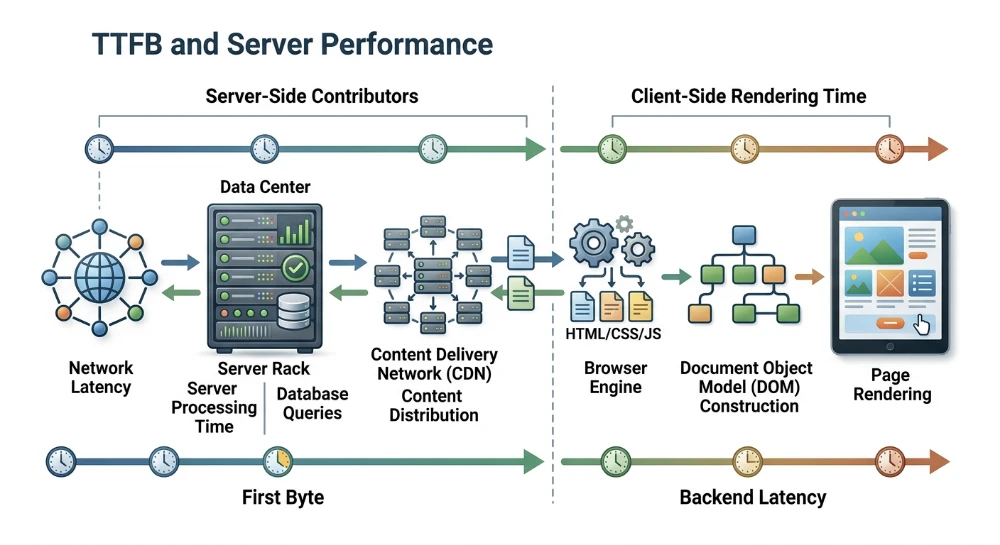
Time to First Byte (TTFB) measures the duration from the browser initiating the page navigation request to the arrival of the first byte of the HTML document response. A slow initial HTML response delays every subsequent phase of the rendering pipeline. Because the browser cannot parse markup, construct the DOM, or discover subresources-including the LCP image, stylesheets, or web fonts-until the document arrives, every millisecond spent waiting on the server pushes the final LCP timestamp back by at least that same amount.
In a network waterfall, TTFB encompasses redirect latency, DNS lookup, TCP connection, TLS negotiation, and server-side processing time. When the first bar in the waterfall accounts for a large portion of the 2.5-second LCP budget, apply optimizations targeting the specific stage of the request lifecycle causing the delay.
Eliminate Pre-Document redirect chains
Every HTTP redirect (`301`, `302`, `307`, or `308`) before the final HTML document adds a complete network round-trip. If a redirect points to a different domain or upgrades the protocol, the browser must also perform additional DNS lookups, TCP handshakes, and TLS negotiations before it can even request the document from the origin or edge server. On high-latency mobile networks, a multi-hop redirect chain can consume several hundred milliseconds before server processing begins.
Audit internal links, canonical URLs, and server routing rules so requests resolve directly to the final destination URL. Common multi-hop patterns to consolidate into a single hop-or eliminate entirely by updating source links-include:
- Protocol and subdomain normalization chains (such as `http://example.com` redirecting to `https://example.com`, which then redirects to `https://www.example.com`).
- Trailing-slash enforcement rules that run sequentially after protocol or hostname redirects.
- Geographic or language auto-redirects executed at the application layer rather than the CDN edge, or applied to URLs used as paid campaign landing pages.
When marketing campaigns append tracking parameters (such as `utm_` or click IDs) to landing page URLs, configure redirect rules and canonical normalizers to preserve or accept those parameters directly on the final URL without triggering an intermediate redirect to strip or reformat them.
Serve HTML from the CDN edge or origin cache
Generating HTML dynamically on the origin server for every request requires executing application code and querying databases, while also forcing the request to travel the full physical distance between the user and the origin data center. Serving pre-built or cached HTML from a Content Delivery Network (CDN) edge node terminates the connection geographically close to the user and returns the first byte directly from memory.
To verify whether the HTML document is actually served from cache, inspect the initial document response headers in Chrome DevTools under the Network panel. Look for the CDN provider's cache status header (such as `cf-cache-status: HIT`, `x-cache: Hit from cloudfront`, or `x-served-by`) alongside the standard `Age` header. If the status shows `MISS`, `BYPASS`, or `DYNAMIC` on anonymous repeat requests, investigate the caching configuration:
- Configure `Cache-Control` headers cleanly. Use `s-maxage` (or provider-specific CDN cache control headers) to allow shared edge caches to store the HTML document even if browser caching (`max-age`) is kept short or set to revalidate.
- Implement `stale-while-revalidate` where supported so the CDN can serve a cached HTML response immediately when the TTL expires, while updating the cached copy asynchronously in the background.
- Strip or ignore marketing query parameters at the CDN cache-key level. If the CDN treats `example.com/page?gclid=123` and `example.com/page?gclid=456` as distinct cache keys, every paid ad click bypasses the cache and hits the origin server cold.
- Prevent non-essential `Set-Cookie` headers or `Vary: Cookie` declarations on public, logged-out pages, as most CDNs bypass HTML caching when response cookies are present.
Optimize backend application logic and database queries
When pages cannot be cached at the edge-such as personalized dashboards, localized inventory views, or authenticated sessions-TTFB is typically dominated by the server processing phase (shown as "Waiting for server response" in Chrome DevTools). Isolate backend bottlenecks by exposing granular timing data through the `Server-Timing` HTTP response header, which surfaces backend database, cache, and rendering durations directly inside the browser's DevTools timing tab.
When server processing time is high, focus engineering effort on the operations blocking the initial response stream:
- Profile and index slow database queries, and eliminate N+1 query patterns that execute sequential database calls during template generation.
- Cache expensive data fragments or API responses in an in-memory object store (such as Redis or Memcached) so the application server can assemble the HTML without recalculating unchanged data.
- Audit CMS plugins, middleware, and server-side A/B testing or analytics hooks that run synchronous external HTTP requests before the server is allowed to flush the HTML response.
Enable brotli or gzip text compression
Compressing the HTML response reduces the number of bytes transferred over the network, which accelerates both the initial data transfer and the completion of the document download. While TTFB strictly measures the arrival of the first byte, uncompressed or poorly compressed HTML forces the browser's preload scanner to wait longer across multiple network packets before it receives the portion of the markup referencing the LCP element.
Verify that the server or CDN returns `Content-Encoding: br` (Brotli) or `Content-Encoding: gzip` on the main `text/html` document response. For static or cached HTML, pre-compressing assets at a higher Brotli compression level yields smaller payloads without adding CPU overhead at request time. For dynamically generated HTML compressed on the fly, use a moderate Brotli quality setting (commonly level 4 or 5) so the CPU time spent compressing the response on the server does not exceed the network transfer time saved.
Use the speculation rules API for subsequent navigations
Standard server optimizations reduce TTFB for the initial landing page, while the Speculation Rules API (`
Eliminating resource load delay: Discoverability and priority
Resource Load Delay measures the elapsed time between the arrival of the initial HTML response (TTFB) and the moment the browser initiates the network request for the LCP resource. For image or video-poster LCP elements, this gap should be near zero; the request for the LCP asset should begin immediately after the HTML document starts streaming. When a network waterfall shows a long horizontal gap between the HTML document download and the start of the LCP image request, the browser either could not discover the image URL in the initial markup or assigned the request a low network priority behind other assets.
How the browser preload scanner discovers resources
Modern browsers run a secondary HTML parser called the preload scanner alongside the primary DOM parser. While the main parser is blocked waiting for synchronous stylesheets or scripts to download and execute, the preload scanner looks ahead through the raw HTML markup to find URLs inside elements such as
<img>
,
<picture>
,
<link>
, and
<script>
, queuing those network requests early.
The preload scanner can only read what is explicitly present in the HTML response returned by the server. Resource Load Delay spikes when the LCP image is hidden inside external resources that the preload scanner cannot evaluate:
-
CSS background images: When an LCP image is declared via
background-image: url(...)inside an external stylesheet, the browser cannot discover the image URL simply by parsing the HTML. It must first download the CSS file, parse the CSS, construct the CSS Object Model (CSSOM), build the DOM, and match the CSS selector to an active DOM node in the render tree before queuing the image download. -
JavaScript-injected images: When the LCP element is rendered by a client-side JavaScript framework, slider plugin, or custom lazy-loading script that stores the URL in a
data-srcattribute, the browser must download, parse, and execute the JavaScript bundle before the<img src="...">attribute exists in the DOM.
Expose the LCP image in initial HTML markup
The primary method to make an LCP image immediately discoverable is to place it directly in the server-rendered HTML using a standard
<img>
or
<picture>
element with a valid
src
or
srcset
attribute.
If a hero banner currently uses a
<div>
with a CSS
background-image
so text can sit on top of it, refactor the component to use an
<img>
element positioned behind the text container using CSS (such as
object-fit: cover
and absolute positioning or CSS Grid overlapping). This preserves the visual layout while exposing the image URL directly to the preload scanner in the initial HTML payload.
Elevate scheduling with fetch priority hints
Even when the preload scanner discovers an
<img>
tag early, browsers often assign images a low or medium initial network priority. During the early stages of page load, the browser does not yet have layout information to know which images are inside the visible viewport and which are further down the page, so it prioritizes stylesheets, fonts, and scripts located in the
<head>
.
Applying the
fetchpriority="high"
attribute to the LCP
<img>
element instructs supporting browsers to elevate the image's internal scheduling priority immediately upon discovery, moving it ahead of non-critical subresources.
<img src="/images/hero-product-800.webp"
     srcset="/images/hero-product-400.webp 400w,
             /images/hero-product-800.webp 800w,
             /images/hero-product-1200.webp 1200w"
     sizes="(max-width: 768px) 100vw, 50vw"
     fetchpriority="high"
     alt="Wireless noise-canceling headphones">
Apply
fetchpriority="high"
strictly to the single LCP image for the active viewport. Adding high priority to multiple carousel slides or an entire grid of product thumbnails reintroduces bandwidth contention and negates the scheduling advantage.
Use preload links only when HTML placement is impossible
When architectural constraints prevent refactoring a CSS background image or an SVG/canvas asset into a standard
<img>
tag in the initial HTML, add a
<link rel="preload">
directive in the document
<head>
. This forces the preload scanner to discover and request the image before the external CSS or JavaScript finishes loading.
If the image is a single static file, reference its URL alongside
as="image"
and
fetchpriority="high"
:
<link rel="preload" as="image" href="/images/hero-banner.webp" fetchpriority="high">
If the page serves responsive images, preloading a single hardcoded
href
can cause the browser to download the wrong image resolution for the user's screen, or download both the preloaded image and the responsive variant. Use
imagesrcset
and
imagesizes
on the preload link so the browser selects the exact file matching the active viewport:
<link rel="preload"
      as="image"
      href="/images/hero-800.webp"
      imagesrcset="/images/hero-400.webp 400w, /images/hero-800.webp 800w, /images/hero-1200.webp 1200w"
      imagesizes="100vw"
      fetchpriority="high">
If you use a
<picture>
element with multiple
<source>
tags and media queries for art direction, ensure any preload tags include matching
media
attributes. Otherwise, the browser will download preloaded images meant for other screen sizes, wasting bandwidth during the critical startup phase.
Preconnect to critical Third-Party image origins
When the LCP image is hosted on the same domain as the HTML document, the browser reuses the existing network connection. However, if the LCP resource is served from a separate domain-such as a dedicated image CDN, cloud storage bucket, or headless DAM-the browser must complete a DNS lookup, TCP handshake, and TLS negotiation with that origin before the first byte of the image can be requested.
Add a
<link rel="preconnect">
hint in the
<head>
for the external image origin so the browser establishes the network connection in parallel with HTML parsing:
<link rel="preconnect" href="https://cdn.example.com">
Note that standard
<img>
requests are sent in non-CORS (no-cors) mode unless the image tag explicitly includes a
crossorigin
attribute. Therefore, omit the
crossorigin
attribute on the
preconnect
link for standard images; including it opens a separate CORS socket pool that the standard
<img>
request will not use, leaving the TLS handshake delay unaddressed.
Remove lazy loading from the LCP element
Applying native lazy loading (
loading="lazy"
) or JavaScript-based lazy loading to the LCP image is one of the most frequent causes of artificial Resource Load Delay. CMS themes and component libraries often apply
loading="lazy"
globally to every image template by default.
When an
<img>
has
loading="lazy"
, the preload scanner intentionally ignores it. The browser delays requesting the image until it has downloaded and parsed the CSS, executed layout calculations, and confirmed through intersection logic that the image sits within or near the visible viewport. Furthermore, lazy-loaded images are not eligible for early high-priority scheduling in the same pass as standard markup images.
Inspect the rendered DOM for the LCP candidate across both mobile and desktop viewports. Remove
loading="lazy"
(or explicitly set
loading="eager"
if overriding a global CMS filter) on the LCP image and any other images consistently visible in the initial viewport without scrolling.
Reverse engineer top SERP rankings and compare 50+ on-page SEO metrics to outrank competitors.
Shortening resource load duration: Payload size and network contention
Resource Load Duration is the third LCP subpart. It measures the elapsed network time from the moment the browser initiates the request for the LCP resource until the final byte of that resource arrives. Even when the browser discovers and requests the LCP image immediately after receiving the initial HTML document, a long download phase will push the overall LCP timestamp past the 2.5-second threshold.
Extended load duration stems from two primary engineering issues: transferring an unnecessarily large byte payload and forcing the LCP resource to compete with other assets for available network bandwidth.
Reduce byte payload through modern formats and compression
The most direct way to shorten download time-especially over constrained mobile connections-is to reduce the file size of the LCP resource. Serving unoptimized original uploads from a CMS or media library transfers excess data that does not improve perceived visual quality on standard screens.
- Convert raster LCP images from legacy formats like JPEG or PNG into modern formats with more efficient compression algorithms, such as WebP or AVIF. AVIF generally achieves smaller file sizes than WebP at equivalent visual quality for photographic images, though encoding times and specific image characteristics can vary.
- Apply lossy compression tuned to an appropriate visual quality level rather than exporting at 100% quality. Lowering the quality setting slightly often reduces the byte size substantially without introducing visible artifacts.
- Strip unnecessary metadata (such as EXIF camera data, color profiles when standard sRGB is used, and thumbnail previews) during the build process or via an image CDN.
If an image CDN is available, configure automatic format negotiation based on the browser's
Accept
request header (for example, transforming the response to AVIF or WebP dynamically) alongside a baseline quality parameter.
Serve responsive image dimensions
Compressing an image is ineffective if a mobile viewport with a 390 CSS pixel width is forced to download a 2400-pixel-wide desktop hero image. Transferring millions of extra pixels wastes bandwidth during the Resource Load Duration phase and increases image decoding time.
Implement responsive images using the
srcset
and
sizes
attributes on the
<img>
element, or use the
<picture>
element when serving different aspect ratios (art direction) across viewports:
<img
  src="hero-800.webp"
  srcset="hero-400.webp 400w, hero-800.webp 800w, hero-1200.webp 1200w, hero-1600.webp 1600w"
  sizes="(max-width: 768px) 100vw, 1200px"
  fetchpriority="high"
  alt="Product dashboard overview"
  width="1200"
  height="675">
A frequent implementation failure occurs when developers include
srcset
but omit or misconfigure the
sizes
attribute. When the preload scanner parses the HTML before layout is calculated, it does not know the rendered width of the image container. If
sizes
is missing, the browser defaults to assuming the image spans
100vw
(100% of the viewport width). On a desktop layout where the image actually occupies a 50% column, a missing
sizes
attribute can cause the browser to select and download a candidate twice as wide as necessary. Always specify a
sizes
value that accurately reflects how much viewport width the image occupies at relevant CSS breakpoints.
Diagnose and eliminate network contention
Resource Load Duration is not determined by file size alone; it also depends on how much bandwidth the connection allocates to the LCP request while it is in flight. If the browser downloads multiple large scripts, web fonts, or secondary images concurrently with the LCP resource, those requests share the available bandwidth and lengthen the LCP download bar.
To diagnose bandwidth competition, inspect the network waterfall in Chrome DevTools or WebPageTest:
- Locate the request row for the LCP resource and observe the active download phase (the solid portion of the request bar after the initial connection and server wait time).
- Scan vertically up and down the waterfall at that exact time slice to see which other requests are actively downloading bytes at the same time.
- Check the Priority column in the network log for those overlapping requests.
Network contention typically happens when too many resources are promoted to high priority early in the page load. Common causes include:
-
Preloading non-critical assets (such as below-the-fold fonts, secondary carousel images, or analytics scripts) via
<link rel="preload">, which forces them to compete directly with the LCP image. -
Applying
fetchpriority="high"to multiple hero carousel slides instead of restricting it strictly to the first visible slide. -
Loading large, unsplit JavaScript bundles synchronously in the
<head>, which the browser requests at a high priority by default.
To resolve contention, audit all
preload
directives and remove any that are not required for the initial above-the-fold render. Ensure only the single LCP candidate carries
fetchpriority="high"
. For secondary images that still get requested early by the preload scanner-such as hidden slides in an above-the-fold carousel-explicitly downgrade their priority using
fetchpriority="low"
or apply
loading="lazy"
to the off-screen slides so the network connection remains dedicated to completing the LCP resource download first.
Resolving element render delay: Render-Blocking resources, scripts, and fonts
Element Render Delay is the time gap between when the LCP resource finishes downloading-or when the HTML document arrives for text-based LCP elements-and when the browser paints the element to the screen. If the network waterfall shows that the LCP image finished downloading at 1.2 seconds, yet the LCP timestamp is recorded at 3.1 seconds, the remaining 1.9 seconds is Element Render Delay. During this phase, the data is already in memory, but the browser is either blocked from rendering by incomplete stylesheets and synchronous scripts, or the main thread is occupied with heavy execution tasks that prevent a paint update.
Eliminating Render-Blocking stylesheets
By default, external CSS files linked in the
<head>
are render-blocking. The browser will not paint any content to the screen until all discovered stylesheets are downloaded, parsed, and combined into the CSS Object Model (CSSOM). Even if an LCP image or heading is present in the initial HTML and ready in memory, a slow or bloated stylesheet holds back the entire rendering pipeline.
To reduce CSS-induced render delays:
- Remove unused CSS rules using build-time pruning tools or by splitting monolithic framework stylesheets into page-specific bundles so templates only load the styles they use.
- Minify and compress all CSS files using Brotli or Gzip to reduce transfer time.
-
Inline the minimal CSS required to style above-the-fold content directly inside a
<style>tag in the document<head>, and load the remaining stylesheet asynchronously.
When deferring non-critical stylesheets, a common pattern uses the
media="print"
attribute with an
onload
handler that switches the media type to
all
once downloaded:
<style>
  /* Critical above-the-fold and LCP element styles */
  .hero-container { display: grid; min-height: 400px; }
  .hero-title { font-size: 2.5rem; line-height: 1.2; }
</style>
<link rel="stylesheet" href="/styles/main.css" media="print" onload="this.media='all'">
<noscript><link rel="stylesheet" href="/styles/main.css"></noscript>
Only apply critical CSS inlining if the inlined styles accurately cover the layout geometry of the entire initial viewport. If the inlined CSS omits structural rules for elements above the fold, the asynchronous stylesheet can trigger a layout shift when it finishes loading and applies the missing dimensions.
Deferring synchronous scripts and breaking up long tasks
JavaScript delays rendering through two distinct mechanisms: parser blocking and main-thread contention. When the HTML parser encounters a standard synchronous
<script src="...">
tag in the
<head>
, it halts DOM construction until that script downloads and executes. Furthermore, because the browser shares a single main thread for JavaScript execution, style calculation, layout, and painting, any Long Task (a task that monopolizes the main thread for 50 milliseconds or more) prevents the browser from painting the LCP element even after the resource has arrived.
To prevent scripts from blocking the parser, audit all
<script>
tags in the document
<head>
and apply either
defer
or
async
:
-
Use
deferfor scripts that depend on the full DOM or require a specific execution order. Deferred scripts download in parallel and execute only after HTML parsing completes. -
Use
asyncfor independent scripts (such as analytics or third-party tracking tags) that do not rely on other scripts. Note thatasyncscripts still execute immediately upon finishing their download, which can interrupt rendering if they finish before the LCP paint occurs.
If the Chrome DevTools Performance panel shows red-cornered Long Tasks on the main thread between the end of the LCP resource download and the LCP paint marker, inspect the Bottom-Up and Call Tree tabs to identify the responsible script. Delay the initialization of non-essential third-party widgets (such as chat support boxes, feedback modals, or social embeds) until after the initial page render or first user interaction, and split large hydration or initialization routines into smaller asynchronous chunks so the browser gets an opportunity to paint the frame in between script executions.
Replacing Client-Side rendering (CSR) for LCP elements
Page rendering architecture directly governs Element Render Delay. In a purely Client-Side Rendered (CSR) Single-Page Application (SPA), the server returns a minimal HTML shell containing an empty root container (such as
<div id="app"></div>
) alongside large JavaScript bundles. The browser cannot construct the DOM nodes for the LCP element until the JavaScript framework downloads, parses, executes, and mounts the component tree. If the component also requires an asynchronous API call to fetch text or image URLs after mounting, the render delay compounds further.
To eliminate CSR render delays, use Server-Side Rendering (SSR) or Static Site Generation (SSG) for the initial page load. With SSR or SSG, the server executes the template logic ahead of time and sends fully formed HTML markup containing the LCP text or
<img>
tag in the initial document response. The browser can then paint the LCP element immediately after parsing the HTML and CSS, while framework hydration proceeds in the background.
Preventing web font delays for text LCP elements
When the LCP candidate is a heading or paragraph block styled with a custom web font, the browser's default font-loading behavior can delay the paint. While a custom font file is downloading, browsers often hide the text node during a timeout window to avoid showing unstyled text-a behavior known as a Flash of Invisible Text (FOIT). Because the text is invisible, the browser does not record the LCP timestamp until the custom font loads or the timeout expires.
Configure
@font-face
rules with the
font-display
descriptor to ensure text paints immediately:
@font-face {
  font-family: 'BrandSans';
  src: url('/fonts/brandsans-bold.woff2') format('woff2');
  font-weight: 700;
  font-style: normal;
  font-display: swap;
}-
font-display: swapinstructs the browser to paint the text immediately using a system fallback font and swap in the custom font once it finishes downloading. -
font-display: optionalgives the font a very brief window (typically around 100ms) to load before the initial paint; if the font does not arrive in time, the browser renders the page with the fallback font and caches the custom font for subsequent pageviews.
Note a key implementation edge case with
font-display: swap
: if the incoming custom font has substantially different glyph metrics than the fallback system font, the swap can expand the text container's rendered bounding box. If the newly resized block is larger than the previous paint, the browser may record a new, later LCP candidate timestamp at the moment the custom font loads. To prevent late font swaps, preload critical self-hosted WOFF2 font files required for above-the-fold text, or use CSS metric override descriptors (
size-adjust
,
ascent-override
,
descent-override
, and
line-gap-override
) on a local fallback font face so the fallback text dimensions match the custom font.
<link rel="preload" href="/fonts/brandsans-bold.woff2" as="font" type="font/woff2" crossorigin>
Always include the
crossorigin
attribute when preloading font files, even when the fonts are self-hosted on the same origin. Because browsers fetch fonts using anonymous-mode CORS by default, omitting
crossorigin
on the preload link causes the browser to download the font file twice under separate network credentials.
Removing Opacity-Zero and Fade-In animation delays
A frequent frontend failure mode occurs when a page loads the LCP resource quickly, but hides the element behind an entry animation, slider transition, or A/B testing anti-flicker snippet. Under the Largest Contentful Paint specification, the browser ignores elements that have
opacity: 0
,
visibility: hidden
, or
display: none
. The LCP timestamp is only recorded on the frame where the element becomes visible to the user.
If a hero section applies a CSS class with
opacity: 0
by default and waits for a JavaScript scroll observer, animation library, or client-side experimentation script to transition the element to
opacity: 1
, the entire duration of the script download, execution, and transition delay is added directly to Element Render Delay. Remove entrance fade-in transitions and initial
opacity: 0
rules from the LCP candidate and its parent containers so the element renders at full visibility on the very first paint frame.
SEO structure and reciprocal link analyzer
Detect orphan pages, deep click depths, and toxic reciprocal links built by careless agencies.
Validating LCP improvements in lab waterfalls and field data
Deploying code changes is only half of the optimization workflow. Because browser resource scheduling, network conditions, and layout calculations interact dynamically, every modification must be verified first in synthetic lab environments and then monitored across real-user field telemetry.
Verifying subpart improvements in lab waterfalls
Lab tools-specifically the Chrome DevTools Performance panel, WebPageTest, and Lighthouse-provide immediate feedback on whether a deployment resolved the targeted bottleneck. Rather than relying solely on the top-line LCP timestamp, which can fluctuate between test runs due to simulated CPU or network variance, inspect the network waterfall and main-thread timeline to confirm three structural conditions:
- Early request initiation: The network request for the LCP image or critical web font should begin immediately after the initial HTML document response arrives. On a waterfall chart, the start bar for the LCP resource should align closely with the completion of the HTML document's first byte, confirming that the preload scanner discovered the asset without waiting for external CSS or JavaScript execution.
- Uncontested download progression: The horizontal bar representing the LCP resource download should be compact and continuous. If the bar is stretched out while multiple non-critical scripts, stylesheets, or below-the-fold images download in parallel, bandwidth contention is still extending Resource Load Duration.
- Immediate paint after download: In the Chrome DevTools Performance trace, inspect the space between the end of the LCP network request and the vertical LCP timing marker. There should be no intervening render-blocking stylesheets or long main-thread JavaScript tasks delaying the paint frame.
Checking for LCP candidate shifts across viewports
A common testing pitfall occurs when optimizing or resizing an element changes which DOM node the browser selects as the final LCP candidate. Because the browser tracks the largest visible element by rendered area inside the viewport, structural or styling adjustments can shift the LCP designation to a secondary element that was previously ignored.
For example, if a hero image is cropped or scaled down to fit a mobile layout more efficiently, its total rendered pixel area may become smaller than an adjacent
<h1>
heading or introductory paragraph block. When that happens, the text block becomes the new LCP candidate. If that text block relies on an unoptimized custom web font, the page's total LCP time may regress or fail to improve despite the image loading faster.
Similarly, removing an artificial delay on a hero element can reveal a slower-loading carousel banner or promotional modal that finishes rendering later and occupies a larger portion of the screen. After every deployment, re-run lab diagnostics on both mobile and desktop viewport profiles to confirm the exact DOM node flagged as the final LCP element.
Monitoring Real-User field data and the 28-day collection window
Confirming a fix in a synthetic waterfall does not immediately update public field metrics. The Chrome User Experience Report (CrUX), which powers the field data section of PageSpeed Insights and the Google Search Console Core Web Vitals report, evaluates performance at the 75th percentile over a rolling 28-day collection window.
Because CrUX aggregates historical data from the past four weeks of eligible Chrome traffic, even a dramatic technical improvement takes time to shift the 75th percentile across the dataset. If a deployment cuts real-world LCP from 4.2 seconds to 1.8 seconds, the published field score will only gradually improve as new user visits replace older, slower sessions in the 28-day rolling window. Using the "Validate Fix" workflow in Google Search Console initiates a 28-day monitoring period during which URLs must consistently meet the required threshold before the issue status is marked as passed.
To verify field improvements immediately after deployment without waiting up to 28 days for CrUX aggregation, collect Real User Monitoring (RUM) telemetry directly from production traffic. Integrating Google's open-source
web-vitals
JavaScript library allows teams to capture the exact LCP timestamp, the specific target DOM node, and the four subpart attribution values for every page load, sending those metrics directly to an analytics endpoint for daily or hourly regression tracking.
import {onLCP} from 'web-vitals/attribution';

onLCP((metric) => {
  const {
    timeToFirstByte,
    resourceLoadDelay,
    resourceLoadDuration,
    elementRenderDelay,
    target
  } = metric.attribution;

  console.log({
    lcpValue: metric.value,
    lcpElement: target,
    ttfb: timeToFirstByte,
    loadDelay: resourceLoadDelay,
    loadDuration: resourceLoadDuration,
    renderDelay: elementRenderDelay
  });
});
Segmenting this real-time attribution data by release version, device category, and page template confirms whether the deployed fixes hold up across varying real-world network latencies and user hardware long before the 28-day CrUX window completes.