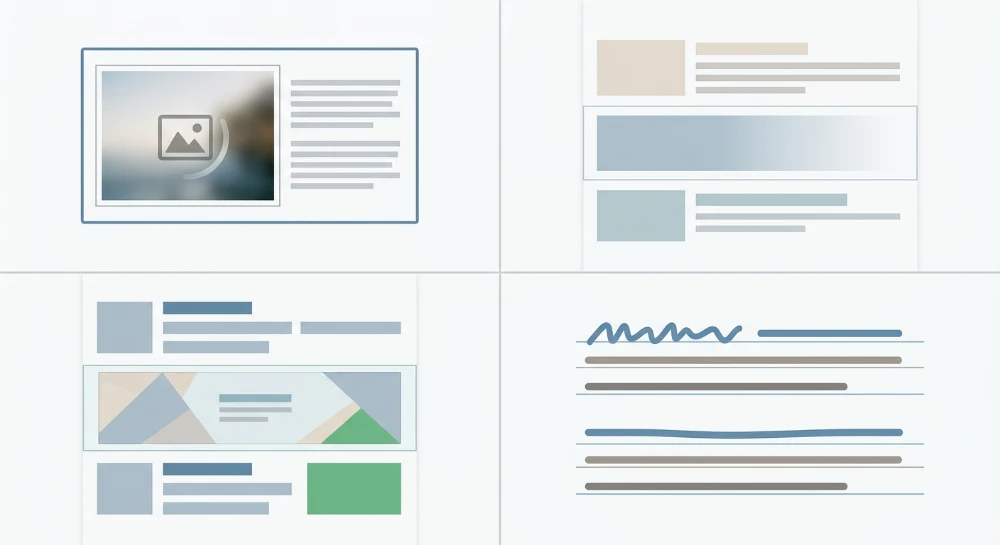
Reducing Cumulative Layout Shift (CLS) requires preventing visible page elements from changing position after the browser renders them. As a Core Web Vitals metric, CLS measures visual stability through the browser's LayoutShift API, calculating the largest burst of layout shift scores recorded within a session window. Each individual shift score combines the impact fraction-the portion of the viewport affected by the unstable element-and the distance fraction, which tracks how far the element moved relative to the viewport.
A key technical distinction when diagnosing CLS is the difference between expected and unexpected movement. Layout shifts that occur within 500 milliseconds of a direct user interaction, such as clicking a button to expand a menu or submitting a form, are excluded from the metric because the user initiated the change. CLS only penalizes unexpected shifts that happen without recent user input, which commonly occur when asynchronous resources load late and push existing content down the page, causing misclicks and disrupted reading flow.
Stabilizing a page layout involves isolating the exact DOM nodes responsible for unexpected movement and reserving their geometric space before the assets arrive. Resolving these shifts requires targeted code-level adjustments: setting explicit dimensions for images and video, defining static containers for third-party ads and embeds, controlling dynamically injected DOM content, aligning fallback font metrics with custom web fonts, and replacing layout-inducing CSS properties with compositor-friendly animations.
Identifying which elements cause layout shifts
Modifying CSS or HTML without first isolating the exact shifting element often leads to ineffective fixes-especially when the element that visually moves is merely pushed down by an entirely different node higher in the document tree. A reliable diagnostic workflow separates discovery in real-user field data from reproduction in local browser developer tools.
Contrasting field data and lab tools
Diagnosing layout instability requires evaluating both field data and lab data, as each environment captures different phases of the user experience:
- Field data sources-including the Chrome User Experience Report (CrUX), the Core Web Vitals report in Google Search Console, the field metrics section of PageSpeed Insights, and dedicated Real User Monitoring (RUM) platforms-aggregate layout shifts experienced by actual visitors across varied device viewports, network speeds, and interaction patterns.
- Lab tools-such as Lighthouse and the Chrome DevTools Performance panel-simulate page loads in a controlled, local or headless environment to provide frame-by-frame diagnostic traces and exact DOM node attribution.
Lab and field CLS scores frequently diverge because standard automated lab audits only observe the initial page load within the initial above-the-fold viewport. If a page passes a Lighthouse audit with a 0.00 CLS score but fails in Google Search Console, the shifts are almost certainly occurring after the initial load state. Field data tracks the entire lifespan of the page session, capturing post-load shifts triggered when users scroll down into lazy-loaded content, when slow mobile networks delay third-party scripts or web fonts, or when cookie consent banners and promotional overlays render only after a scroll event.
Inspecting layout shift records in browser developer tools
To reproduce and inspect the specific DOM nodes causing these shifts, use the Performance panel in Chromium-based browser developer tools:
- Open DevTools, navigate to the Performance panel, and configure environment settings to match real-world conditions. Apply network throttling (such as Fast 3G or Slow 4G) and CPU slowdown so asynchronous assets and fonts arrive at realistic intervals, and test both desktop and mobile viewport dimensions.
- Start a performance recording and reload the page. If field data suggests post-load instability, continue recording while scrolling down the page to trigger lazy-loaded images, infinite scroll containers, and dynamic ad slots before stopping the trace.
- Locate the Experience track (or the Layout Shifts track in newer DevTools versions) within the timeline. Individual layout shift events appear as red markers or diamonds; bursts of shifts grouped into a session window are underlined or bracketed together.
- Click an individual layout shift record to open its details in the Summary tab at the bottom of the panel. This view reports the individual shift score, indicates whether the shift had recent user input, and lists the affected DOM nodes under the Moved from / Moved to entries.
- Hover over the listed DOM node in the Summary tab to highlight its previous position and its new position directly on the page viewport, or step through the Filmstrip screenshots above the timeline right before and after the red marker.
When interpreting the affected nodes list, distinguish between the victim element and the root cause. The LayoutShift API reports the visible DOM node that changed coordinates-for example, a main article container or a heading that dropped 150 pixels downward. However, the actual cause of that movement is usually an element inserted or resized immediately above it, such as an unmeasured banner image or an asynchronously injected promotional bar that initially rendered with a height of zero.
Run a deep technical crawl to identify 4xx errors, missing meta tags, and indexation blockers.
Setting explicit dimensions for images and video elements
When a browser parses an HTML document and encounters an
img
or
video
tag without sizing information, it cannot determine how much vertical or horizontal space the media will occupy until the file header downloads over the network. During initial layout calculation, the rendering engine assigns the element a bounding box of 0x0 pixels (or collapses its height to zero if its width is constrained by a parent container). Once the image or video metadata arrives, the browser recalculates the geometry of the page to expand the element to its natural dimensions, triggering a document reflow that pushes subsequent DOM nodes downward.
Adding width and height attributes to HTML media tags
To prevent this reflow, always define explicit
width
and
height
attributes directly on
img
and
video
elements in the initial HTML payload. These attributes must contain integer values representing the intrinsic pixel dimensions of the source file, without unit suffixes such as
px
or
%
.
<img src="product-hero.jpg" width="1200" height="800" alt="Product assembly view">

<video src="demo-clip.mp4" width="1920" height="1080" controls preload="metadata"></video>
Modern browsers use these HTML attributes to compute an internal aspect ratio before making the network request for the media asset. Specifically, the browser's user-agent stylesheet applies an automatic aspect ratio calculation mapped directly from the HTML attributes:
img, video {
  aspect-ratio: attr(width) / attr(height);
}
Because this ratio is established during initial HTML parsing, the browser immediately reserves the exact layout box required for the media element. When the image or video frame finally decodes and paints, it fills the pre-allocated space without altering the coordinates of surrounding text or containers.
Combining HTML attributes with responsive CSS
Setting static pixel dimensions in HTML does not break fluid grid layouts when paired with standard responsive CSS rules. To make media scale dynamically across viewports while preserving its pre-calculated layout box, apply
width: 100%
(or
max-width: 100%
) and
height: auto
in the stylesheet:
img, video {
  max-width: 100%;
  height: auto;
}
Under this configuration, the layout engine determines the rendered width of the image from its parent container, overrides the literal pixel height attribute with
height: auto
, and uses the intrinsic aspect ratio derived from the HTML
width
and
height
attributes to calculate the exact rendered height prior to download. If an image has HTML attributes of
width="1200"
and
height="600"
(a 2:1 ratio) and sits inside a mobile container that is 360 pixels wide, the browser immediately allocates a 360x180 pixel box on the first layout pass.
A common failure mode occurs when stylesheets apply a fixed or responsive width but omit
height: auto
, causing the element to stretch disproportionately to match the literal HTML
height
attribute. Conversely, setting
height: 100%
on an image inside an unmeasured flex or grid item can override the aspect-ratio calculation and reintroduce layout shifts.
Sizing containers directly with the CSS aspect-ratio property
In some frontend architectures-such as CSS background images, video player wrappers, or JavaScript-driven media galleries-sizing attributes cannot be placed directly on an inline
img
tag before rendering. In these cases, apply the CSS
aspect-ratio
property directly to the media element or its structural wrapper container:
.hero-media-wrapper {
  width: 100%;
  aspect-ratio: 16 / 9;
}
Using
aspect-ratio
in CSS instructs the browser to maintain the specified width-to-height proportion on the container itself, regardless of whether the child media asset has loaded. This approach replaces the legacy padding-bottom hack (such as setting
padding-bottom: 56.25%
on a zero-height box for a 16:9 container) and works directly with CSS Grid and Flexbox layouts.
Managing responsive images with srcset and picture
When delivering responsive images via the
srcset
attribute or the
picture
element, aspect ratio consistency determines how dimensions must be declared.
For resolution switching with
srcset
-where multiple image files show the same crop at different pixel widths-every candidate file in the set must share the exact same aspect ratio. Set the
width
and
height
attributes on the base
img
tag using the dimensions of the default fallback source (or any source in the set, provided the ratio is identical):
<img
  src="hero-800.jpg"
  srcset="hero-400.jpg 400w, hero-800.jpg 800w, hero-1600.jpg 1600w"
  sizes="(max-width: 768px) 100vw, 800px"
  width="800"
  height="450"
  alt="Dashboard interface">
If one image in a
srcset
list has a slightly different crop due to rounding errors in an automated image-resizing pipeline (for example, 800x450 versus 400x226), the browser reserves space based on the
img
tag's attributes and then adjusts the box height once the mismatched file downloads, recording a layout shift.
For art direction using the
picture
element-where a mobile viewport receives a square or portrait crop and a desktop viewport receives a wide landscape crop-declaring dimensions only on the inner
img
tag is insufficient. Instead, include explicit
width
and
height
attributes on each individual
source
element alongside its
media
query, as well as on the fallback
img
element:
<picture>
  <source media="(max-width: 600px)" srcset="banner-mobile.jpg" width="600" height="600">
  <source media="(min-width: 601px)" srcset="banner-desktop.jpg" width="1440" height="480">
  <img src="banner-desktop.jpg" width="1440" height="480" alt="Seasonal collection">
</picture>
Supporting browsers evaluate the active
media
condition on the
source
tag, read the corresponding
width
and
height
attributes for that specific breakpoint, and reserve the correct layout box before requesting the matching image file.
Reserving space for ads, embeds, and Third-Party iframes
Asynchronous third-party resources-such as programmatic ad slots, video embeds, map widgets, and social media posts-frequently inject DOM nodes or resize iframes late in the rendering lifecycle. Because the host page does not know the final dimensions of an external payload while parsing the initial HTML, the browser renders surrounding content as if the third-party container has a height of zero. Once the external script executes and populates the iframe, the newly expanded container pushes adjacent content downward.
Wrapping dynamic slots in static containers
To prevent late-loading embeds from shifting the page layout, wrap the target element or ad tag inside a static HTML container with pre-allocated dimensions. Applying a CSS
min-height
(or fixed
height
and
width
) on the wrapper forces the browser to reserve the exact layout footprint during the initial render pass, before the third-party script finishes downloading.
/* CSS */
.ad-slot-leaderboard {
  min-height: 250px;
  width: 100%;
  display: flex;
  justify-content: center;
  align-items: center;
  background-color: #f8f9fa;
}

@media (min-width: 768px) {
  .ad-slot-leaderboard {
    min-height: 90px;
  }
}
<!-- HTML -->
<div class="ad-slot-leaderboard">
<!-- Third-party ad script or iframe injects here -->
<div id="ad-unit-01"></div>
</div>
For third-party embeds that scale fluidly with the viewport, such as responsive YouTube or Vimeo iframes, combine explicit
width
and
height
attributes on the
iframe
with the CSS
aspect-ratio
property. If a social media widget (such as an embedded post with variable text length) does not follow a fixed aspect ratio, inspect the rendered heights of typical embeds across your pages and set the wrapper's
min-height
to match the baseline height, allowing the container to expand only when an unusually long embed loads.
Managing Variable-Size ad inventory and unfilled slots
Programmatic advertising introduces specific layout challenges because a single ad unit often auctions inventory across multiple creative sizes (for example, a slot that accepts a 300x250 medium rectangle, a 300x600 half-page unit, or a 320x50 mobile banner), or fails to return an ad altogether. How you configure the wrapper container depends on the trade-off between layout stability and visible whitespace:
| Ad Slot Scenario | Reservation Strategy | Layout Stability and UX Trade-off |
|---|---|---|
| Multi-size auction slot (e.g., 300x250 or 300x600) |
Reserve the largest possible height (
min-height: 600px
).
|
Eliminates expansion shifts completely. If a smaller creative (300x250) wins the auction, 350px of blank or styled placeholder space remains visible around the ad. |
| Multi-size auction slot |
Reserve the most common height based on historical ad-server delivery data (e.g.,
min-height: 250px
).
|
Minimizes whitespace on the majority of page views while preventing shifts when a 300x250 creative serves. However, a layout shift will occur whenever a taller 300x600 creative wins the auction, and smaller creatives (such as 320x50) will leave excess whitespace. |
| Multi-size auction slot | Restrict the ad request at the ad-server or tag level to fixed dimensions per viewport breakpoint. | Prevents size-mismatch shifts and excess whitespace simultaneously, though limiting eligible creative sizes can affect auction competition. |
| Unfilled ad request (no-fill) | Keep the reserved container open and display a fallback placeholder, house ad, or subtle background pattern. | Preserves a zero-shift layout when the ad server returns an empty response, at the cost of keeping non-monetized space in the document flow. |
Avoid configuring ad scripts to dynamically collapse the wrapper container (setting
display: none
or reducing height to
0px
) when an ad request goes unfilled above the fold. Shrinking a pre-allocated container after surrounding text has rendered pulls lower DOM nodes upward into the viewport, which registers as an unexpected layout shift just like a downward push. If an unfilled slot must collapse, position that unit exclusively below the initial viewport and trigger the ad request early enough that any collapse completes before the user scrolls the slot into view.
SEO structure and reciprocal link analyzer
Detect orphan pages, deep click depths, and toxic reciprocal links built by careless agencies.
Controlling dynamically injected content and async components
Inserting DOM nodes into the normal document flow above already-rendered viewport content forces the browser to recalculate layout and push visible elements downward. Unlike third-party iframes that load external assets, these shifts typically originate from first-party JavaScript, tag managers, or personalization scripts executing after the initial HTML paint.
Common sources of dynamic DOM injection include:
-
Late-loading promotional or notification banners injected at the top of the
<body>or main header after checking user session state or geolocation. - Cookie consent and privacy notices that insert inline above or within the document flow instead of overlaying the viewport.
- Client-side A/B testing and personalization scripts that mutate headings, hero blocks, or page structures after the default variant has already rendered (often visible as a flicker).
- Asynchronous UI components-such as personalized product carousels, live inventory badges, customer review widgets, or dynamic pricing blocks-that populate only after an API fetch resolves.
Decoupling overlays and banners from document flow
When a banner or notice must appear dynamically based on client-side logic, remove it from the normal document flow so its insertion does not alter the coordinates of sibling elements. Applying
position: fixed
or
position: sticky
with an appropriate
z-index
layers the component over the viewport rather than pushing existing nodes down.
/* Fixed overlay pattern for cookie consent or late promo banners */
.consent-banner {
  position: fixed;
  bottom: 0;
  left: 0;
  right: 0;
  z-index: 1000;
}
If a top promotional bar must remain inline within the document flow so it scrolls away naturally with the page, its height must be established before the first paint. Render the banner container directly in the initial server-side HTML with an explicit height or
min-height
. If eligibility rules depend on user state, evaluate those rules at the server or CDN edge so the initial HTML payload already includes or omits the banner prior to browser rendering.
The same architectural rule applies to A/B testing and personalization. Avoid client-side scripts that swap variable-height DOM structures after the page becomes visible. Where client-side experimentation is unavoidable, constrain both the control and variant containers to identical heights across all responsive breakpoints, or move variant assignment to an edge worker so the browser receives the final HTML in a single render pass.
Stabilizing asynchronous data fetches with skeletons
Single-page applications (SPAs) and hybrid storefronts frequently render a static shell first and populate data-driven sections after client-side API calls complete. If an asynchronous component renders as an empty node during the network request and expands once JSON data arrives, every element below it inside the viewport shifts.
To prevent expansion shifts during data fetching, render a skeleton UI or fixed-dimension placeholder in the initial HTML or framework mount phase. The placeholder must match the exact outer box dimensions (including margins, padding, and borders) of the hydrated component.
| Component Type | Pre-Fetch State | Hydration Handling |
|---|---|---|
| Fixed-count card grid or carousel | Render a skeleton grid with identical card heights, grid gaps, and container padding. | Swap skeleton nodes with live data inside the existing grid cells without altering wrapper height. |
| Variable-length dynamic content (e.g., user comments or recommendations) |
Apply a CSS
min-height
matching the minimum expected payload, or render the block below the initial viewport.
|
If the returned data is shorter than the reserved space, allow the container to shrink only if it remains entirely above or below the user's current scroll position; otherwise, maintain the reserved height. |
| Async status badges or inline alerts | Reserve a fixed-height utility row in the layout template. | Populate text or icons inside the pre-allocated row rather than conditionally inserting the wrapper element. |
Managing the 500ms User-Interaction exclusion window
The LayoutShift API ignores layout shifts that occur within 500 milliseconds of a discrete user input event, specifically
pointerdown
,
pointerup
,
click
, or
keydown
. Passive interactions such as scrolling, hovering, or pinch-zooming do not trigger this exclusion window. This 500ms grace period allows interfaces to expand accordions, open dropdown menus, or load "Show More" content upon user request without accumulating CLS.
A common failure mode occurs when a user click triggers an asynchronous network request before updating the UI. If a user clicks a "Load More Reviews" button and the API takes 650ms to return data before inserting the new DOM nodes, the layout shift happens 150ms after the exclusion window has expired. The browser records that late insertion as an unexpected shift.
To keep interactive layout changes inside the 500ms boundary:
- Mutate the DOM immediately within the synchronous event handler for the click or tap-expand the target container and insert a fixed-height skeleton placeholder right away so the geometry shift completes well within 500ms.
- Fetch the asynchronous payload while the skeleton occupies the newly expanded space.
- Replace the skeleton content with the fetched data once the request resolves, keeping the outer container dimensions unchanged.
- If expanding a container using a CSS height transition or JavaScript animation upon click, ensure the total transition duration plus any main-thread execution delay finishes in under 500ms; any animation frames that alter element positions after the 500ms mark are scored against CLS.
Preventing layout shifts from web fonts (FOUT and FOIT)
Custom web fonts frequently trigger unexpected layout shifts because browsers only discover a font file after downloading the HTML, parsing the CSS, and matching a DOM node to a
@font-face
declaration. If the custom font has not finished downloading by the time the browser paints the text, the rendering engine handles the delay in one of two ways, both of which can alter page geometry:
- Flash of Unstyled Text (FOUT): The browser immediately renders the text using a local fallback system font (such as Arial or Georgia) and swaps in the custom web font once the file arrives. If the custom font has different glyph widths, x-heights, kerning, or default line heights than the system fallback, the text reflows upon swapping. A paragraph that occupied four lines in the fallback font might wrap onto a fifth line in the custom font, pushing every subsequent sibling and parent container downward.
- Flash of Invisible Text (FOIT): The browser hides the text entirely during a block period while waiting for the web font to download. Although invisible text still reserves space based on the fallback font's metrics in most modern browsers, when the custom font finally renders with different vertical or horizontal dimensions-or if an unstyled container expands to accommodate the newly painted text block-adjacent elements shift position.
Eliminating font-induced layout shifts requires combining early asset discovery, controlled font-swapping behavior, and matched fallback metrics.
Preloading critical Above-the-Fold fonts
Because browsers do not request a web font until they build the render tree and confirm that an element on the page actually uses that typeface, font downloads typically start late in the network waterfall. Adding a
rel="preload"
link in the document
<head>
instructs the browser to fetch the font file immediately alongside the initial HTML, increasing the likelihood that the asset is available before the first paint.
<link rel="preload" href="/fonts/inter-v12-latin-regular.woff2" as="font" type="font/woff2" crossorigin>When implementing font preloading, follow two operational rules:
-
Always include the
crossoriginattribute (even when the font is self-hosted on the same origin). Browsers fetch fonts using anonymous-mode CORS; omittingcrossoriginon the preload tag causes the browser to download the font twice-once in non-CORS mode for the preload cache, and a second time in CORS mode when the CSS parser requests it. -
Restrict
rel="preload"to the one or two WOFF2 font variants strictly required for above-the-fold text (typically the primary body regular weight and primary heading weight). Preloading every italic, bold, and decorative variant competes for bandwidth with critical CSS and hero images, which can delay initial rendering.
Configuring the CSS font-display property
The
font-display
descriptor inside a
@font-face
rule controls how the browser handles the block period and swap period when a web font is not yet loaded. Choosing between values involves a direct trade-off between guaranteed custom typography and visual stability.
| font-display Value | Rendering Behavior | CLS Impact and Use Case |
|---|---|---|
optional
|
Gives the font an extremely short block period (typically around 100ms) and a zero-second swap period. If the font does not arrive within that initial window, the browser renders the fallback font permanently for that page view and caches the custom font in the background for future navigations. | Prevents font-induced layout shifts after the initial paint because no late swap occurs. Suitable for body copy or performance-critical pages where layout stability takes priority over guaranteed custom branding on the first uncached visit. |
swap
|
Uses a zero-second block period and an infinite swap period. The browser paints the fallback font immediately and swaps in the custom font whenever the download finishes, even if that happens several seconds into the session. | Ensures text is visible right away, but causes a layout shift (FOUT) whenever the custom font loads late and its metrics differ from the fallback font. Only safe for CLS when paired with preloading or CSS metric overrides. |
fallback
|
Uses a very short block period (~100ms) followed by a short swap period (typically ~3 seconds). If the font arrives during the swap window, it replaces the fallback; if it arrives later, the fallback remains for the rest of the page view. | Limits very late layout shifts on slow connections, though a shift can still occur during the 3-second swap window if metrics are unaligned. |
Aligning fallback metrics with CSS font overrides
When design requirements dictate using
font-display: swap
so custom fonts always appear on the first page view, you can neutralize the resulting FOUT layout shift by adjusting the fallback system font's dimensions to match the incoming web font. Modern browsers support four CSS
@font-face
metric override descriptors:
-
ascent-override: Defines the height above the baseline, affecting the top spacing of text lines. -
descent-override: Defines the depth below the baseline. -
line-gap-override: Defines the external leading (space between lines of text). -
size-adjust: Scales the overall glyph width and height proportionally so character wrapping matches the target web font.
By creating a local
@font-face
synthetic fallback rule that wraps a standard system font (such as Arial or Roboto) with calculated override percentages, the fallback text occupies the exact same vertical height and line-wrapping footprint as the custom font.
@font-face {
  font-family: 'Custom Brand Font';
  src: url('/fonts/custom-brand.woff2') format('woff2');
  font-display: swap;
}

@font-face {
  font-family: 'Custom Brand Fallback';
  src: local('Arial');
  size-adjust: 105.4%;
  ascent-override: 92.5%;
  descent-override: 23.1%;
  line-gap-override: 0%;
}

body {
  font-family: 'Custom Brand Font', 'Custom Brand Fallback', sans-serif;
}
Calculate these exact percentage values by reading the custom font's raw OpenType tables (specifically the
unitsPerEm
,
ascender
,
descender
, and
lineGap
values in the
head
and
hhea
tables) and dividing them by the corresponding metrics of the target local system font, or by generating them via automated tooling such as Fontaine, Capsize, or framework font modules (such as
next/font
). Note that because Windows, macOS, Android, and iOS ship with different default system fonts, high-precision setups sometimes define platform-specific fallback rules (for example, matching one
local()
override rule to
Arial
/
Roboto
and another to
BlinkMacSystemFont
/
Helvetica Neue
) so line wrapping remains consistent across operating systems.
Detect stealthy content rewrites, relevance drops, and injected spam links.
Fixing CSS reflows, Non-Composited animations, and late styles
Stylesheet execution and browser rendering behaviors can trigger unexpected geometry changes even when every media asset and container on the page has explicit dimensions. When CSS rules modify an element's box model or position within the document flow after the initial paint, the browser must recalculate the positions and dimensions of all affected nodes on the main thread. Eliminating these stylesheet-driven shifts requires replacing layout-inducing animations with compositor-friendly properties, ensuring critical layout styles arrive before the first paint, and stabilizing the viewport against scrollbar appearance.
Replacing Non-Composited animations with transform and opacity
Animating CSS properties that govern element geometry or document flow-such as
width
,
height
,
top
,
right
,
bottom
,
left
,
margin
, or
padding
-triggers a main-thread layout recalculation (reflow) and repaint on every single frame of the transition. Because the browser updates the element's physical coordinates or dimensions step by step, each intermediate frame registers as an individual layout shift in the
LayoutShift
API-both for the animated element itself (when its starting point changes) and for any sibling or descendant nodes pushed aside during the transition.
To animate movement or sizing without triggering layout shifts, restrict transitions and keyframe animations to
transform
and
opacity
. The browser promotes elements using these properties to their own compositor layer and processes the visual changes on the GPU via the compositor thread, completely bypassing the main-thread layout stage. The element's underlying layout box remains static in the document flow, so surrounding elements never move and the browser records a layout shift score of zero.
| Visual Effect | Layout-Inducing Property (Triggers CLS) | Composited Replacement (Zero CLS) |
|---|---|---|
| Horizontal or vertical movement |
top
,
left
,
right
,
bottom
,
margin
|
transform: translate3d(x, y, 0)
or
translate(x, y)
|
| Expanding or shrinking an element |
width
,
height
,
padding
|
transform: scale(x, y)
|
| Showing or hiding UI panels |
display: none
to
block
with animated height
|
opacity
paired with
transform: translateY()
|
For example, a slide-out navigation drawer or notification toast that animates its
left
or
margin-top
property should be refactored to use
transform: translateX()
or
translateY()
:
/* Avoid: Triggers main-thread reflow and layout shifts on every frame */
.drawer-legacy {
  position: fixed;
  top: 0;
  left: -320px;
  width: 320px;
  transition: left 0.3s ease-out;
}
.drawer-legacy.is-open {
  left: 0;
}

/* Recommended: Runs on the compositor thread without changing layout geometry */
.drawer-composited {
  position: fixed;
  top: 0;
  left: 0;
  width: 320px;
  transform: translateX(-100%);
  transition: transform 0.3s ease-out;
}
.drawer-composited.is-open {
  transform: translateX(0);
}
Note that while
transform: scale()
prevents layout shifts, scaling an element holding text or borders will visually distort its contents. When an accordion or collapsible container must genuinely push sibling content downward to avoid overlapping it, trigger that expansion only in direct response to a user click or tap and ensure the CSS transition duration completes well within the 500-millisecond user-interaction exclusion window.
Eliminating flash of unstyled content (FOUC) and late styles
A Flash of Unstyled Content (FOUC) occurs when the browser parses and paints HTML before the stylesheets defining the page's structural layout have finished downloading and parsing. This failure mode commonly arises when teams defer all stylesheets indiscriminately, load CSS asynchronously via JavaScript, or inject component styles late during client-side hydration. When the delayed stylesheet finally applies, stacked block elements suddenly snap into multi-column CSS Grid or Flexbox layouts, causing a severe full-viewport layout shift.
Prevent late-style reflows by keeping structural CSS render-blocking or inlined in the document
<head>
:
-
Inline critical CSS rules that control above-the-fold layout (containers, grid definitions, header dimensions, and responsive breakpoints) directly inside a
<style>tag in the initial server HTML response. - When splitting stylesheets by route or component, ensure the structural styles for a component are loaded before or alongside the HTML markup they govern, rather than injected via JavaScript after the component mounts.
-
Avoid placing
<link rel="stylesheet">tags inside the document<body>unless they immediately precede the specific unrendered DOM subtree they style, as body-level stylesheets applied to already-painted elements force a synchronous reflow.
Preventing horizontal shifts from late scrollbar appearance
A subtle horizontal layout shift often occurs on desktop browsers that render classic (non-overlay) scrollbars. If a page initially loads with minimal height-such as an empty shell waiting for client-side data-the content fits within the viewport and no vertical scrollbar is shown. Once asynchronous content populates the page and exceeds the viewport height (
100vh
), the browser injects a vertical scrollbar (typically 15 to 17 pixels wide). This reduces the available viewport width and shifts every centered or fluid-width element slightly to the left.
Stabilize the horizontal viewport width from the very first frame by reserving space for the scrollbar on the root element:
html {
  scrollbar-gutter: stable;
}
The
scrollbar-gutter: stable
property instructs supporting browsers to allocate the scrollbar's width layout space even when the page content does not yet overflow vertically, preventing any horizontal reflow when the content expands. In environments requiring legacy browser support where
scrollbar-gutter
is unavailable, setting
overflow-y: scroll;
on the
html
or
body
element achieves the same layout stability by forcing a persistent scrollbar track at all times.
Validating fixes in lab traces and field data
Deploying layout stability fixes requires a two-stage verification workflow: immediate technical validation in a controlled browser environment, followed by longitudinal monitoring in real-user field datasets. Because automated lab audits only test a single load state, confirming that a fix works across all page conditions requires manual interaction testing before waiting for field reports to update.
Immediate verification in browser developer tools
To confirm right away that a code change resolves a specific layout shift, record a fresh performance trace in browser developer tools rather than relying solely on a default Lighthouse run. Configure the test environment to expose race conditions and post-load shifts that fast local connections hide:
- Open the page in an incognito or private window to prevent browser extensions and cached assets from skewing resource arrival times.
- In the developer tools Performance panel, apply CPU throttling (such as a 4x slowdown) and network throttling (such as Fast 3G or Slow 4G). Throttling widens the timing gap between initial HTML parsing, font downloading, and asynchronous script execution, testing whether reserved placeholders and font fallbacks hold their dimensions under slow network conditions.
- Start recording a performance trace, reload the page, and allow above-the-fold content to settle.
- While the trace is still recording, scroll smoothly from the top of the document to the bottom. This action triggers lazy-loaded images, below-the-fold ad slots, and intersection-observed components that static page-load tests ignore.
- Stop the recording and inspect the Experience track. Confirm that the previously identified layout shift records are either eliminated or reduced to negligible scores, and verify that fixing one container did not inadvertently transfer the shift to an adjacent sibling element.
Repeat this trace across both desktop and mobile viewport dimensions. A responsive layout might remain stable on desktop while still shifting on mobile if a media query overrides an explicit
aspect-ratio
or
min-height
rule at narrower breakpoints.
Interpreting field data timelines and RUM
Even when lab traces show a CLS score of zero immediately after deployment, public field data tools will continue to report historical layout issues for several weeks. The Chrome User Experience Report (CrUX)-which powers the field data sections of PageSpeed Insights and the Google Search Console Core Web Vitals report-evaluates the 75th percentile of user visits aggregated over a rolling 28-day collection period.
| Validation Source | Data Collection Scope | Feedback Timeline | Primary Verification Role |
|---|---|---|---|
| Browser DevTools Performance Trace | Single simulated session (load and manual scroll) | Immediate | Confirming code-level fixes under throttled conditions before and right after release |
| Real User Monitoring (RUM) |
All instrumented user sessions via the
LayoutShift
API
|
Real-time to 24 hours | Segmenting post-deployment CLS by release version, device type, and specific shifting DOM nodes |
| CrUX / PageSpeed Insights Field Data | 75th percentile of eligible Chrome users | Rolling 28-day window | Evaluating long-term URL-level and origin-level compliance against the 0.1 CLS threshold |
| Google Search Console CWV Report | CrUX data grouped by similar page templates | Rolling 28-day window (plus validation cycle) | Tracking site-wide template stability and completing formal Search Console issue validation |
Because CrUX averages new, post-fix sessions with older, pre-fix sessions across that 28-day window, the reported 75th-percentile score improves gradually as pre-deployment data ages out of the dataset. Using the "Validate Fix" feature in Google Search Console initiates a formal monitoring period of up to 28 days; if the URL group remains above the 0.1 threshold due to lingering historical traffic or an unaddressed edge case on specific devices, validation will not pass until enough clean sessions dominate the distribution.
To verify real-user stability without waiting a full month, capture layout shift metrics directly in production using a dedicated Real User Monitoring (RUM) solution or the standard
web-vitals
JavaScript library. Because custom RUM pipelines query the browser's
LayoutShift
API directly on every pageview, engineering teams can filter CLS scores by deployment timestamp or application version. This immediate segmentation confirms within hours of a release whether the 75th-percentile CLS has dropped below 0.1 across actual user devices, network speeds, and scroll depths.