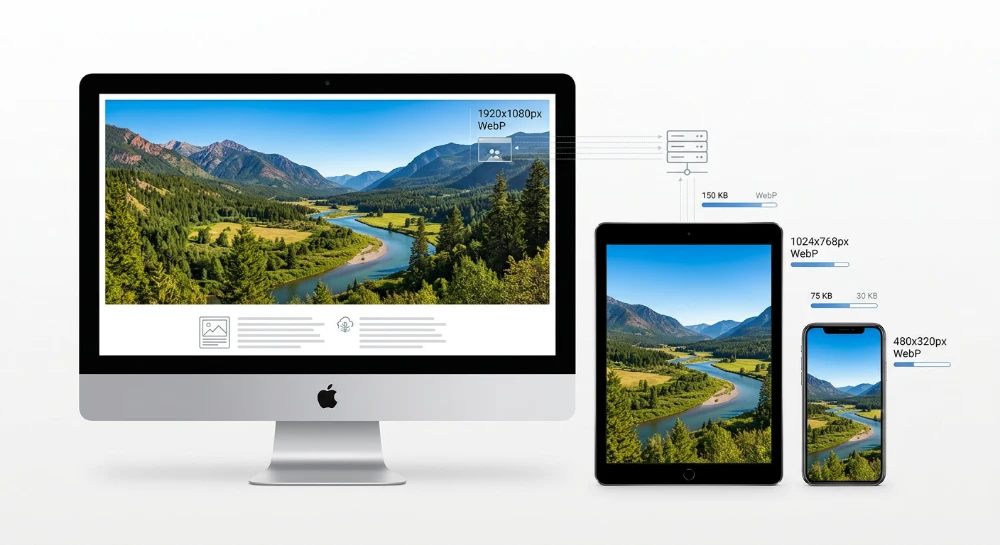
Serving a single, fixed-size image across all devices creates an immediate mismatch between a file's intrinsic dimensions and its rendered layout dimensions. When a desktop-sized image is scaled down via CSS to fit a mobile screen, the browser still downloads the full byte payload before discarding the excess pixel data during rendering. Conversely, serving a low-resolution asset to a device with a high Device Pixel Ratio (DPR) results in visible blurring. Understanding how responsive images improve performance begins with separating CSS layout sizing from resource selection: CSS controls how large an image appears on the page, while HTML attributes like
srcset
,
sizes
, and the
<picture>
element control which actual file the browser requests over the network.
The primary technical objective of responsive image markup is to give the browser's preload scanner enough information to select an appropriate image candidate before the external CSS is downloaded and parsed. Because the preload scanner reads raw HTML early in the document lifecycle, it does not know the final layout width of an image container unless that information is declared directly in the markup. Providing candidate files alongside rendered slot sizes and modern formats (such as AVIF and WebP) allows the browser to match the asset to the user's viewport width and screen density right as discovery happens.
Correctly implemented responsive image markup directly supports Core Web Vitals and page rendering mechanics. Matching the downloaded file size to the rendered container reduces unnecessary byte transfer, which can help improve Largest Contentful Paint (LCP) when an image is the primary above-the-fold element. At the same time, pairing responsive candidates with explicit
width
and
height
attributes allows the browser to calculate the intrinsic aspect ratio and reserve the exact vertical layout space before the image bytes arrive, preventing Cumulative Layout Shift (CLS) as the page loads.
Choosing between <img> and <picture>: Resolution switching vs. art direction
Before writing responsive image markup, determine whether the visual requirement calls for a single
<img>
element or a
<picture>
wrapper. Although both structures allow the browser to select from multiple image files, they serve different technical functions and instruct the browser to evaluate candidates using different rules.
Defining the three responsive image scenarios
Responsive image delivery falls into three distinct operational patterns:
- Resolution switching: Serving identical image content at different pixel dimensions or device pixel densities. The composition, framing, and aspect ratio remain exactly the same across all variants; only the pixel count changes to match the rendered container size and screen density.
- Art direction: Serving visually altered images-such as differently cropped, zoomed, framed, or aspect-ratio-adjusted files-at specific viewport breakpoints. For example, a wide landscape promotional banner on desktop might be replaced on mobile screens with a tightly cropped square version that keeps the primary subject legible.
- Format switching: Offering the same visual asset encoded in modern codecs (such as AVIF or WebP) alongside a universally supported fallback format (such as JPEG or PNG) so the browser can select the most efficient MIME type it supports.
The practical decision rule
Use a standalone
<img>
element with
srcset
and
sizes
attributes when the only goal is resolution switching within a single file format. When using
srcset
on a standalone
<img>
, the HTML specification treats the candidate list as a set of suggestions rather than strict commands. The browser is free to apply its own heuristics-factoring in viewport size, DPR, network conditions, or what is already in the local cache-to pick whichever file it deems appropriate.
Reserve the
<picture>
element with child
<source>
elements for art direction or multi-format delivery. Unlike
srcset
on a standalone image, media queries and MIME types declared on
<source>
tags act as strict rules. The browser must follow the exact conditions specified in the markup, making
<picture>
necessary when a layout depends on a specific aspect ratio change at an exact CSS breakpoint or when negotiating between AVIF, WebP, and legacy formats.
| Use Case | Visual Content & Aspect Ratio | Browser Selection Behavior | Recommended HTML Structure |
|---|---|---|---|
| Resolution Switching | Identical across all variants | Discretionary (based on viewport, DPR, and browser heuristics) |
Single
<img>
with
srcset
and
sizes
|
| Art Direction | Changes crop, framing, or aspect ratio at breakpoints |
Mandatory match to the first qualifying
media
condition
|
<picture>
with
<source media="...">
and
<img>
|
| Format Switching | Identical (encoded in different file formats) |
Mandatory match to the first supported
type
MIME attribute
|
<picture>
with
<source type="...">
and
<img>
|
How <picture>, <source>, and <img> interact in the DOM
A common implementation error is treating
<picture>
as a direct replacement for
<img>
. According to the HTML specification, the
<picture>
element does not render anything on its own. It functions strictly as an invisible wrapper that provides candidate sources to its required child
<img>
element.
Within a
<picture>
container, one or more
<source>
elements hold the conditional candidate lists, while a single
<img>
element must appear last. When the browser evaluates the block, it reads the
<source>
tags from top to bottom, picks the first one whose
media
and
type
attributes match the user's environment, and feeds that winning URL directly into the
<img>
element to be rendered on the page.
Because the
<img>
tag is the actual rendered DOM node, omitting it causes the image to fail to display entirely, even if valid
<source>
elements are present. Furthermore, attributes that apply to the rendered element itself-such as
alt
text for accessibility and search engines, CSS styling hooks, or loading behavior-belong on the inner
<img>
tag rather than the outer
<picture>
wrapper. The
src
attribute on that inner
<img>
also serves as the default image when no preceding
<source>
condition matches or in environments that do not support the
<picture>
element.
Run a deep technical crawl to identify 4xx errors, missing meta tags, and indexation blockers.
Resolution switching with srcset and sizes
Implementing resolution switching on an
<img>
element relies on the
srcset
attribute to provide a comma-separated list of image URLs alongside descriptors that inform the browser about each file's dimensions or intended pixel density. How those candidates are declared depends on whether the image occupies a fixed pixel width or scales fluidly with the viewport.
Fixed-Width elements and pixel density descriptors
When an image renders at an identical CSS pixel width across all screen sizes-such as a company logo, a fixed-size avatar, or a UI icon-use pixel density descriptors (x-descriptors). An x-descriptor appends the target Device Pixel Ratio (such as
1x
or
2x
) directly after the image URL in the
srcset
attribute.
<img src="logo-200.png"
     srcset="logo-200.png 1x, logo-400.png 2x"
     width="200"
     height="60"
     alt="Company Logo">
In this configuration, a browser on a standard 1x display selects
logo-200.png
, while a 2x display selects
logo-400.png
to map two physical hardware pixels to every one CSS pixel. The standard
src
attribute remains required both as a fallback for user agents that do not support
srcset
and as the default
1x
candidate if you omit the
1x
entry from the
srcset
list.
Fluid layouts and width descriptors
Most content images, hero banners, and product cards resize dynamically according to the viewport width. Because the rendered CSS width is not fixed, a simple
1x
or
2x
multiplier does not give the browser enough information to pick the right file. For fluid images, use width descriptors (w-descriptors) paired with the
sizes
attribute.
A w-descriptor specifies the intrinsic pixel width of each image source file by appending its pixel measurement followed by the letter
w
(for example,
800w
for an image that is 800 pixels wide). You cannot mix x-descriptors and w-descriptors within the same
srcset
attribute; doing so invalidates the candidate list according to the HTML specification.
<img src="product-800.jpg"
     srcset="product-400.jpg 400w,
             product-800.jpg 800w,
             product-1200.jpg 1200w,
             product-1600.jpg 1600w"
     sizes="(max-width: 600px) calc(100vw - 32px),
            (max-width: 1024px) 50vw,
            350px"
     width="800"
     height="600"
     alt="Ergonomic office chair">
How the browser calculates the target image size
When using w-descriptors, the browser does not know how wide the image will appear on screen at the moment the HTML preload scanner discovers the
<img>
tag, because external CSS stylesheets may not have finished downloading or parsing. The
sizes
attribute solves this by declaring the image's rendered layout width directly in the HTML using a comma-separated list of media conditions and source-size values.
The browser evaluates the
sizes
attribute and selects the image file through a three-step calculation:
-
Evaluate media conditions to find the slot width:
The browser reads the comma-separated list in
sizesfrom left to right and stops at the first media condition that evaluates to true against the current viewport. The length value paired with that condition defines the rendered slot width. The final value in the list has no media condition and acts as the default when no preceding conditions match. -
Convert the slot width to CSS pixels:
Length values in
sizescan be expressed as viewport units (vw), absolute pixels (px), relative units (em,rem), or CSScalc()expressions. Percentages (%) are invalid insidesizesbecause the browser cannot know the width of the parent DOM container before CSS layout completes. When a layout includes fixed margins, padding, or a sidebar,calc()allows accurate slot definitions-for example,calc(100vw - 32px)for a full-width mobile image inside a container with 16-pixel horizontal padding on each side, orcalc(100vw - 280px)alongside a fixed 280-pixel sidebar. -
Multiply by Device Pixel Ratio and match a candidate:
The browser multiplies the resolved CSS slot width by the device's DPR to determine the required physical pixels. For instance, using the code example above on an 800-pixel-wide tablet screen with a 2x DPR, the first media condition
(max-width: 600px)is false, and the second condition(max-width: 1024px)is true. The browser takes the corresponding50vwlength (400 CSS pixels), multiplies it by the 2x DPR to get a target of 800 physical pixels, and selectsproduct-800.jpg(800w) from thesrcsetlist. If an exact match does not exist, browsers typically select the nearest candidate larger than the calculated target.
The 100vw default failure mode
According to the HTML specification, whenever an
<img>
element uses w-descriptors in
srcset
, the
sizes
attribute should also be present. If you omit
sizes
-or if all media conditions fail without an unconditional fallback value at the end-the browser defaults the slot width to
100vw
(100 percent of the viewport width).
This default behavior causes a common performance failure on multi-column desktop layouts and constrained content containers. Consider a desktop viewport that is 1440 pixels wide with a 2x DPR, displaying a four-column product grid where each image renders at 300 CSS pixels wide. If the developer provides a
srcset
ranging from
400w
to
2800w
but omits the
sizes
attribute, the browser assumes the image will span the full 1440-pixel viewport. Multiplying
100vw
(1440px) by the 2x DPR produces a 2880-pixel requirement, causing the browser to download the massive
2800w
file for a slot that only needed a 600-pixel (
600w
) image.
Similarly, because the browser selects the first matching media condition in
sizes
, ordering conditions incorrectly can trigger oversized downloads. When writing
max-width
conditions, order them from smallest breakpoint to largest; when writing
min-width
conditions, order them from largest breakpoint to smallest so the first broad condition does not prematurely override more specific rules below it.
Capping maximum candidates for High-DPR screens
Modern mobile devices frequently ship with 3x or higher DPR screens. Serving an uncompressed or lightly compressed 3x image candidate (such as a
1200w
file for a 400-pixel mobile slot) increases total byte size significantly-because doubling linear dimensions quadruples the total number of pixels-while rarely producing a noticeable visual improvement on a small physical screen during normal browsing.
As a practical recommendation for photographic content, capping your largest generated image candidates around an effective 2x DPR for the maximum rendered slot width often balances visual sharpness with transfer size. For example, if a hero or article image never renders wider than 800 CSS pixels on desktop viewports, providing a maximum candidate of
1600w
in
srcset
satisfies 2x displays without exposing 3x mobile devices or high-DPI desktop monitors to unnecessarily heavy
2400w
downloads. Exceptions apply where fine detail or text legibility is primary, such as technical diagrams, charts, or zoomable e-commerce product photography, where higher-density candidates or higher compression quality at lower resolutions may be warranted.
Art direction and Next-Gen format delivery with
While a standalone
<img>
element handles resolution switching across identical image ratios, the
<picture>
element provides deterministic control over candidate selection. When the browser parses a
<picture>
wrapper, it evaluates its child
<source>
elements sequentially from top to bottom. It stops at the very first
<source>
element where both the
media
condition evaluates to true for the current viewport and the MIME type specified in the
type
attribute is supported by the browser. If no
<source>
matches-or if the browser does not support
<picture>
-the browser falls back to the required child
<img>
element.
Because this evaluation strictly follows source order, the arrangement of
<source>
tags dictates which file is requested. Most restrictive media conditions and highest-efficiency file formats must appear first, followed by broader conditions and more widely compatible formats.
Client-Side format negotiation
Using the
type
attribute on
<source>
elements allows the browser to perform client-side format negotiation without relying on server-side
Accept
header inspection or content-negotiation rules. If a browser does not support the declared MIME type (such as
image/avif
), it skips that
<source>
immediately without initiating a network request.
To combine format switching with fluid resolution switching, place both
srcset
and
sizes
directly on each
<source>
element alongside the
type
attribute:
<picture>
  <source
    type="image/avif"
    srcset="product-400.avif 400w, product-800.avif 800w, product-1200.avif 1200w"
    sizes="(max-width: 768px) 100vw, 50vw">
  <source
    type="image/webp"
    srcset="product-400.webp 400w, product-800.webp 800w, product-1200.webp 1200w"
    sizes="(max-width: 768px) 100vw, 50vw">
  <img
    src="product-800.jpg"
    srcset="product-400.jpg 400w, product-800.jpg 800w, product-1200.jpg 1200w"
    sizes="(max-width: 768px) 100vw, 50vw"
    alt="Wireless mechanical keyboard with aluminum frame">
</picture>
In this pattern, a browser supporting AVIF evaluates the first
<source>
, calculates the required slot size using its
sizes
attribute, and downloads the appropriate
.avif
candidate from that
srcset
. Placing
image/jpeg
above
image/webp
or
image/avif
would cause every modern browser to match the JPEG source first, rendering the next-gen sources below it unreachable.
Selecting formats based on image characteristics
Modern formats like AVIF and WebP generally achieve smaller byte sizes than legacy formats at equivalent visual quality, but neither is a universal replacement for every asset. Format selection should account for content type, encoding overhead, and compression behavior:
| Format (MIME Type) | Compression Characteristics | Browser Support and Trade-offs | Practical Use Cases |
|---|---|---|---|
AVIF (
image/avif
)
|
Supports lossy and lossless compression, HDR, 10-bit/12-bit color depth, and alpha transparency. Frequently achieves the smallest file sizes for photographic content at low-to-medium bitrates. | Supported across current evergreen browsers (Chrome, Firefox, Safari, Edge). High CPU encoding cost; can sometimes smooth out fine film grain or subtle surface textures if aggressively compressed. | Primary format candidate for photographs, hero banners, and complex gradients where byte reduction is the priority. |
WebP (
image/webp
)
|
Supports lossy and lossless compression plus alpha transparency. Lossless WebP consistently produces smaller files than PNG. | Near-universal support across modern browsers. Faster to encode and decode than AVIF, though lossy compression can exhibit blockiness around sharp high-contrast edges at very low quality settings. | Secondary modern candidate below AVIF, or primary modern format when build-time encoding speed precludes AVIF generation. |
JPEG (
image/jpeg
)
|
Lossy compression optimized for continuous-tone photographs; supports progressive rendering scan layers. No transparency support. | Universal compatibility across all user agents, email clients, and legacy crawlers. Larger byte footprint than AVIF or WebP at comparable perceptual quality. |
Fallback
<img>
format for photographic assets.
|
PNG (
image/png
)
|
Lossless compression with full alpha channel support. Preserves exact pixel values and sharp contrast boundaries without chroma subsampling artifacts. | Universal compatibility. Very large file sizes when used for continuous-tone photographs. |
Fallback
<img>
format for UI screenshots, technical diagrams with sharp text, or assets requiring transparency.
|
Before deploying a three-tier format stack across an entire site, verify that each modern variant is actually smaller than its fallback. For certain already-optimized PNG graphics or specific high-frequency textures, an automated encoder set to a high quality factor can occasionally output a WebP or AVIF file that is larger in bytes than the source file. Because the browser selects candidates strictly by DOM order and MIME support without knowing the file size ahead of time, it will download a heavier AVIF file if it appears first in the
<picture>
element.
Implementing art direction with the media attribute
Art direction modifies the composition, crop, or aspect ratio of an image at specific viewport breakpoints-such as replacing a wide landscape photograph on desktop with a tightly cropped square version on mobile so the subject remains discernible. Unlike resolution switching, where the browser maintains full discretion to pick from a pool of candidates based on network or DPR conditions, the
media
attribute on a
<source>
tag is a strict directive: the browser must use the matching source when the media query is true.
<picture>
  <source
    media="(min-width: 1024px)"
    type="image/avif"
    srcset="hero-wide-1200.avif 1200w, hero-wide-2000.avif 2000w"
    sizes="100vw">
  <source
    media="(min-width: 1024px)"
    type="image/webp"
    srcset="hero-wide-1200.webp 1200w, hero-wide-2000.webp 2000w"
    sizes="100vw">
  <source
    media="(min-width: 1024px)"
    srcset="hero-wide-1200.jpg 1200w, hero-wide-2000.jpg 2000w"
    sizes="100vw">
  <source
    type="image/avif"
    srcset="hero-square-400.avif 400w, hero-square-800.avif 800w"
    sizes="100vw">
  <source
    type="image/webp"
    srcset="hero-square-400.webp 400w, hero-square-800.webp 800w"
    sizes="100vw">
  <img
    src="hero-square-800.jpg"
    srcset="hero-square-400.jpg 400w, hero-square-800.jpg 800w"
    sizes="100vw"
    alt="Team collaborating around a whiteboard">
</picture>
When combining art direction and format switching, every breakpoint group requires its own format cascade, including a legacy format
<source>
for the desktop breakpoint (the third
<source>
above) if the fallback
<img>
defaults to the mobile crop. If the third
<source>
were omitted, a browser on a 1200px desktop viewport that only supported JPEG would skip all the AVIF and WebP sources and fall back to the mobile square crop defined on the
<img>
element.
Avoiding redundant media conditions in sizes
A common implementation mistake when writing
<picture>
markup is duplicating art-direction media queries inside the
sizes
attribute, or attempting to trigger different crops using
sizes
alone. These two attributes serve distinct roles:
-
The
mediaattribute on<source>switches which group of images is active at a layout breakpoint (changing the crop or aspect ratio). -
The
sizesattribute tells the browser how wide the selected image will render on the page so it can pick the right pixel width from that active group'ssrcset.
Once a
<source>
is matched via
media="(min-width: 1024px)"
, that source is only ever active on viewports 1024 pixels or wider. Including mobile media conditions like
sizes="(max-width: 1023px) 100vw, 80vw"
inside that desktop
<source>
is redundant; its
sizes
attribute only needs to describe the layout slot for viewports matching
min-width: 1024px
(for example, simply
sizes="80vw"
).
Conversely, never mix differently cropped images inside a single
srcset
expecting a media condition in
sizes
to switch between them. Because the browser multiplies the
sizes
length by the device pixel ratio to choose a width descriptor, a 400px mobile viewport with a 3x DPR screen looks for a
1200w
image. If a single
srcset
contains a square crop at
400w
and a wide desktop crop at
1200w
, the 3x mobile phone will download and display the wide desktop crop, breaking the mobile layout.
SEO structure and reciprocal link analyzer
Detect orphan pages, deep click depths, and toxic reciprocal links built by careless agencies.
Preventing layout shifts with dimensions and aspect ratio reservation
Selecting the right image resource does not prevent Cumulative Layout Shift (CLS) on its own. Because images load asynchronously after the initial HTML document is parsed, the browser initially renders surrounding text and layout containers without knowing the image's physical dimensions. Unless the markup or CSS explicitly communicates the image's aspect ratio beforehand, the browser allocates a 0x0 pixel box (or the collapse height of an inline element) and then pushes visible page content downward once the image header bytes arrive and reveal the true dimensions.
How browsers calculate aspect ratio from HTML attributes
Historically, responsive web design omitted HTML
width
and
height
attributes because fluid CSS rules like
width: 100%
without a corresponding
height: auto
caused images to stretch vertically to their hardcoded HTML height. Modern browsers resolve this conflict through an internal user-agent stylesheet rule that maps the HTML
width
and
height
attributes directly to the CSS
aspect-ratio
property:
img {
  aspect-ratio: attr(width) / attr(height);
}
When an
<img>
element includes integer values for
width
and
height
(without units like
px
or
%
), the browser calculates the intrinsic aspect ratio immediately during HTML parsing. When combined with standard fluid CSS reset rules, the browser determines the exact rendered height as soon as the container width is known:
img, picture {
  max-width: 100%;
  height: auto;
}
With both the HTML attributes and the CSS reset in place, a container that resolves to 600px wide containing an image with
width="1600" height="900"
immediately reserves a 600px by 337.5px layout box before the image network request even begins.
When using
srcset
with width descriptors for resolution switching, all candidate files in the
srcset
must share the exact same aspect ratio. The
width
and
height
attributes on the
<img>
element can correspond to the pixel dimensions of the fallback
src
image or any candidate in the set, provided the ratio matches across all variants.
Reserving space for Art-Directed picture elements
Art direction introduces a layout reservation problem when different breakpoints use different crops. If a mobile viewport requires a 4:5 portrait image and a desktop viewport requires a 16:9 landscape image, relying solely on the
width
and
height
attributes of the inner
<img>
tag will reserve the wrong vertical space on at least one viewport, triggering a layout shift as soon as the active image loads.
The HTML specification supports explicit
width
and
height
attributes directly on
<source>
elements inside a
<picture>
container. Modern browsers evaluate the matched
<source>
element and use its specific dimensions to calculate the aspect ratio for that breakpoint:
<picture>
  <source
    media="(min-width: 768px)"
    srcset="hero-wide-800.webp 800w, hero-wide-1600.webp 1600w"
    sizes="100vw"
    width="1600"
    height="900"
    type="image/webp">
  <source
    srcset="hero-portrait-400.webp 400w, hero-portrait-800.webp 800w"
    sizes="100vw"
    width="800"
    height="1000"
    type="image/webp">
  <img
    src="hero-portrait-800.jpg"
    alt="Product dashboard overview"
    width="800"
    height="1000">
</picture>
On viewports 768px and wider, the browser matches the first
<source>
and applies a 1600:900 (16:9) aspect ratio. Below 768px, it falls through to the portrait source (or fallback
<img>
) and reserves an 800:1000 (4:5) box.
Failure modes and CSS Aspect-Ratio overrides
Two common implementation errors break aspect ratio reservation or distort the rendered image:
-
Mismatched intrinsic and attribute ratios:
If the HTML attributes declare
width="800" height="600"(a 4:3 ratio), the browser initially reserves a 4:3 box. If the actual downloaded image file is 800x450 (a 16:9 ratio) and CSS setsheight: auto, the browser recalculates the layout height once the image decodes, snapping the container from a 4:3 height to a 16:9 height and causing a layout shift. -
Omitting height: auto in fluid layouts:
If CSS sets
width: 100%on an image without settingheight: auto, the HTMLheightattribute acts as a fixed pixel height. The image stretches or squishes horizontally to fill the container while remaining locked to the literal pixel value of theheightattribute.
In components such as product grids, author avatars, or CMS-managed article cards, content editors may upload images with arbitrary dimensions that do not match a uniform template ratio. When the frontend design requires a strict container proportion regardless of the uploaded file's intrinsic dimensions, manage the box dimensions in CSS using
aspect-ratio
and
object-fit
:
.card-thumbnail {
  width: 100%;
  aspect-ratio: 4 / 3;
  object-fit: cover;
}
An explicit CSS
aspect-ratio
rule overrides the ratio derived from the HTML
width
and
height
attributes, locking the layout box to the exact template proportion so no layout shift occurs even if the uploaded image has irregular dimensions. Adding
object-fit: cover
instructs the browser to scale and crop the image cleanly within that reserved box rather than distorting the image to fit.
Resource loading priority, preloading, and LCP considerations
Selecting the right image dimensions only improves page load timing if the browser discovers and prioritizes the resource early in the page lifecycle. When a browser downloads an HTML document, its primary parser may be blocked by synchronous scripts or waiting on external stylesheets. During this time, a secondary parser called the preload scanner scans the raw HTML markup ahead of the main parser to discover external assets and queue network requests immediately.
Because the preload scanner operates before the CSS Object Model (CSSOM) is constructed and before layout occurs, it does not know the rendered size of any container on the page. It relies entirely on the HTML attributes present in the raw markup-
srcset
,
sizes
, and
<picture>
-along with the current viewport dimensions and Device Pixel Ratio to select and fetch the appropriate image candidate. However, the preload scanner initially assigns images a low or medium network priority because it cannot yet determine whether a given image will appear within the initial viewport.
Prioritizing Above-the-Fold and Below-the-Fold images
Once layout completes and the browser determines which images are visible in the viewport, it upgrades their fetch priority. For the Largest Contentful Paint (LCP) element-such as a hero banner, featured article image, or primary product photo-waiting until layout completes to upgrade network priority delays when the image finishes downloading. You can guide the browser's scheduling decisions directly in the HTML markup using the
fetchpriority
and
loading
attributes.
| Image Placement and Role | Recommended Attributes | Browser Scheduling Behavior |
|---|---|---|
| Primary above-the-fold or LCP candidate image |
fetchpriority="high"
(omit
loading="lazy"
)
|
Instructs the preload scanner to request the selected responsive candidate at a higher network priority immediately upon discovery, ahead of other low-priority images. |
| Secondary above-the-fold images (e.g., navigation icons, secondary thumbnails) |
Default behavior (omit both
fetchpriority
and
loading="lazy"
)
|
Allows the preload scanner to queue the image at default priority without competing against the primary LCP candidate for early bandwidth. |
| Below-the-fold / offscreen images |
loading="lazy"
|
Prevents the preload scanner from fetching the image immediately. The browser defers the network request until the user scrolls near the image's layout position. |
Combining responsive attributes with explicit priority hints ensures the browser downloads both the smallest viable file and schedules it ahead of non-critical assets:
<img
  src="hero-800.jpg"
  srcset="hero-400.jpg 400w, hero-800.jpg 800w, hero-1200.jpg 1200w, hero-1600.jpg 1600w"
  sizes="100vw"
  width="1600"
  height="900"
  fetchpriority="high"
  alt="Platform dashboard overview">
Apply
fetchpriority="high"
sparingly-typically to a single LCP image per page template. Applying high priority to multiple images in a carousel or product grid dilutes the prioritization signal and reintroduces bandwidth contention among the promoted files.
The failure mode of Lazy-Loading LCP images
A common performance regression occurs when a content management system, theme, or global image helper automatically applies
loading="lazy"
to every
<img>
tag in the document, including the primary hero or header image.
When an image has
loading="lazy"
, the browser's preload scanner ignores it during the initial HTML pass. The browser must first download and parse the HTML, fetch and parse render-blocking CSS, construct the render tree, and compute layout geometry to verify whether the image intersects the viewport. Only after layout confirms the image is visible does the browser initiate the network request. Even if the responsive markup selects a small, well-compressed WebP or AVIF candidate, holding back the request until layout finishes adds avoidable network wait time directly to the page's LCP measurement.
Preloading Late-Discovered responsive images
When an LCP image is present directly in the initial server-rendered HTML markup, the preload scanner discovers it automatically and a separate
<link rel="preload">
tag is unnecessary. However, if the primary image is injected dynamically via client-side JavaScript, rendered inside a late-loading web component, or hidden inside an external stylesheet, the preload scanner cannot see it during the initial document scan.
In these cases, you can expose the image to the preload scanner by placing a
<link rel="preload" as="image">
element in the document
<head>
. When preloading a responsive image, do not point the
href
attribute to a single fixed-size file without responsive attributes; doing so forces every device to download that single file, overriding your
srcset
logic and often causing a double download when the actual
<img>
tag is parsed later.
Instead, mirror the image's responsive candidate list using the
imagesrcset
and
imagesizes
attributes on the preload link:
<link
  rel="preload"
  as="image"
  href="hero-800.jpg"
  imagesrcset="hero-400.jpg 400w, hero-800.jpg 800w, hero-1200.jpg 1200w, hero-1600.jpg 1600w"
  imagesizes="100vw"
  fetchpriority="high">
When
imagesrcset
and
imagesizes
are present, modern browsers ignore the fallback
href
value and evaluate the candidate list using the exact same viewport and DPR logic as a standard
<img>
element. Ensure that the strings inside
imagesrcset
and
imagesizes
match the corresponding
srcset
and
sizes
attributes on the rendered
<img>
element character for character so the browser reuses the preloaded resource from memory rather than initiating a second request.
If the late-discovered LCP image uses a
<picture>
element for art direction with different media queries, avoid collapsing all breakpoints into a single preload tag. Instead, use separate
<link rel="preload" as="image">
tags with matching
media
attributes for each art-directed source. That way, the browser evaluates the media queries in the
<head>
and preloads only the candidate matching the active viewport.
Parse live Google SERPs, extract LSI entities, and write highly relevant articles.
Generating responsive image variants at scale
Manually exporting multiple widths and formats for every visual asset does not scale across large media libraries or dynamic CMS environments. Production systems automate variant generation and markup rendering using one of three primary architectures: dynamic URL-based image CDNs, build-time asset processing pipelines, or framework-level image components.
Comparing variant generation architectures
| Architecture | Processing Mechanism | Primary Trade-offs | Best Fit Scenarios |
|---|---|---|---|
| Image CDNs (e.g., Cloudflare Images, Cloudinary, Imgix) |
Generates, converts, and caches variants on demand at the network edge using URL query parameters or path segments (such as
?w=800&f=auto
).
|
Eliminates build-time bottlenecks and supports automatic format negotiation via the HTTP
Accept
header, but introduces recurring service costs and relies on external URL structures.
|
Large e-commerce catalogs, user-generated content, and media-heavy sites with frequent CMS updates. |
| Build-Time Pipelines (e.g., Sharp, ImageMagick, libvips) | Pre-computes all declared widths and formats (AVIF, WebP, JPEG) during static site generation or CI/CD deployment, outputting static files to hosting storage. | Zero runtime transformation latency and no third-party CDN transformation fees, but increases deployment build times and storage consumption proportionally to the number of variants. | Static sites, documentation portals, and repositories with a bounded number of assets. |
Framework Components (e.g., Next.js
<Image>
, Astro
<Image />
)
|
Abstracts markup generation and pairs with either an internal server-side optimization endpoint (often powered by Sharp) or a configured external Image CDN loader. |
Enforces dimension attributes and generates
srcset
and
sizes
strings automatically, though self-hosted on-demand optimization consumes application server CPU and memory if not fronted by a CDN cache.
|
Modern component-based frontend architectures (React, Vue, Astro) seeking standardized developer ergonomics. |
Selecting width breakpoints without diluting cache hit ratios
When configuring an automated pipeline or CDN url generator, allowing arbitrary pixel widths or generating dozens of tightly spaced increments (such as stepping by 50 pixels) creates a performance anti-pattern. If every distinct viewport width requests a slightly different image URL, edge and browser caches fragment, decreasing the cache hit ratio and forcing origin servers or transformation engines to process redundant variants.
Instead of matching exact device viewports, define a constrained set of width steps based on predictable visual and file-size thresholds:
-
Use percentage-based geometric steps rather than fixed linear increments. Increasing width candidates by roughly 25% to 40% per step (for example:
400w,600w,800w,1200w,1600w,2000w) ensures that each jump represents a meaningful difference in pixel count and byte weight across both small mobile screens and wide desktop monitors. -
Enforce a strict allowlist of supported widths at the CDN or framework configuration level (such as the
deviceSizesandimageSizesarrays in Next.js). Rejecting or rounding arbitrary width requests prevents cache pollution and protects origin compute resources from uncached parameter tampering. -
Evaluate byte-size deltas when fine-tuning steps for specific templates. Because total pixel area scales quadratically with image width, a 200-pixel step from
400wto600wincreases total pixels by 125%, whereas a 200-pixel step from1400wto1600wincreases total pixels by only 30%. Space upper-tier breakpoints wider apart so every generated variant delivers a substantial byte savings over the next larger file. -
Prevent upscaling in transformation rules. Configure processing libraries and CDN parameters (such as
fit=scale-downorwithoutEnlargement: truein Sharp) so that an original1000pxsource image never generates padded or interpolated1200wor1600wvariants, which increase byte transfer without adding visual detail.
Validating image selection and auditing sizing failures
Deploying
srcset
,
sizes
, and
<picture>
markup does not guarantee that the browser will download the intended file. A single syntax error in a media condition or an inaccurate slot width in
sizes
can cause the browser to fall back to the default
100vw
assumption or select an oversized candidate. Verification requires testing how the browser's resource selection algorithm responds across discrete viewport widths and Device Pixel Ratios (DPR) under clean cache conditions.
Inspecting the selected candidate with currentsrc
Viewing the raw HTML source or inspecting the
src
attribute in the DOM tree only shows the fallback URL, not the candidate selected from
srcset
or a child
<source>
element. To see which resource the browser actually requested and rendered, inspect the
HTMLImageElement.currentSrc
DOM property.
In Chrome DevTools, there are two ways to verify the active image source and compare its dimensions:
-
In the Elements panel, select the target
<img>node and hover the cursor over itssrcorsrcsetattribute value. The tooltip displays the rendered dimensions (in CSS pixels), the intrinsic dimensions of the downloaded file (in physical pixels), the active aspect ratio, and the resolvedcurrentSrcURL. -
In the Console panel, select the image in the Elements tree and run
$0.currentSrcto output the exact URL string, or run a script across all images on the page to compare their layout width against the downloaded file's natural width:
console.table(
  Array.from(document.querySelectorAll('img')).map(img => ({
    currentSrc: img.currentSrc.split('/').pop(),
    renderedWidthCSS: Math.round(img.getBoundingClientRect().width),
    requiredPhysicalWidth: Math.round(img.getBoundingClientRect().width * window.devicePixelRatio),
    intrinsicWidth: img.naturalWidth,
    widthDelta: img.naturalWidth - Math.round(img.getBoundingClientRect().width * window.devicePixelRatio)
  }))
);
If
widthDelta
is a large positive number (exceeding the step size between your generated image variants), the
sizes
attribute is likely overstating the rendered slot width for that viewport, or the next smaller candidate is missing from
srcset
.
Step-by-Step viewport and DPR testing workflow
A common testing error is dragging the browser window from a wide desktop viewport down to a mobile width and observing that no smaller images are requested. When using standard
w
descriptors without art-directed
<picture>
media queries, browsers often retain an already-cached higher-resolution image in memory rather than spending bandwidth to download a lower-resolution variant of the same asset. Accurate testing requires disabling the cache and reloading at each target breakpoint.
- Open Chrome DevTools and navigate to the Network panel. Check the Disable cache checkbox and filter the request list by Img.
- Open the Device Toolbar to enable viewport emulation. Ensure the DPR selector (along the top emulation bar) is visible so both layout width and pixel density can be controlled independently.
-
Set the viewport to a narrow mobile dimension (for example,
375pxwide) with a1xDPR, then perform a hard reload. Inspect the Network panel to confirm the browser requests the smallest appropriate variant (such as400w) in the expected modern format (AVIF or WebP). -
Change the emulated DPR to
2xwhile keeping the viewport at375px, then reload the page. Confirm the browser now requests a candidate near750px(such as800w). -
Increase the viewport width across your layout's major CSS breakpoints (such as
768px,1024px, and1440px), reloading at each step. Verify that the downloaded file widths scale according to the slot widths defined in yoursizesattribute rather than jumping immediately to the largest source file at tablet widths. - Open the Performance panel and record a page load under an emulated mobile profile. Inspect the Network track alongside the Timings track to confirm that the primary above-the-fold image is discovered early by the preload scanner and completes downloading before the Largest Contentful Paint (LCP) marker.
Interpreting the properly size images diagnostic
Automated auditing tools such as Lighthouse and PageSpeed Insights evaluate image sizing through the "Properly size images" diagnostic. Understanding how this audit calculates wasted bytes helps distinguish genuine markup bugs from expected responsive stepping behavior.
During a test run, Lighthouse captures the rendered dimensions of each visible
<img>
element in CSS pixels and multiplies them by the emulated device's DPR (for standard mobile audits, Lighthouse emulates a moto G Power with a DPR of
1.75
or similar high-density mobile profile depending on the Lighthouse version). It then compares this required physical pixel area against the intrinsic dimensions (
naturalWidth
and
naturalHeight
) of the downloaded image file.
If the downloaded image contains significantly more pixels than the rendered slot requires, Lighthouse estimates the byte savings based on the compression ratio of the current file and flags the image if the potential savings reach or exceed 4 KiB. When auditing flagged URLs, use the following diagnostic rules to determine the appropriate fix:
-
If the intrinsic width matches the fallback
srcor the largest candidate insrcseton a multi-column desktop layout or padded mobile container, inspect thesizesattribute. The markup is likely missing a media condition or using100vwwhere a fractional viewport width (such as50vworcalc(100vw - 48px)) is needed. -
If the
sizesattribute accurately reflects the rendered CSS width, check the gap between your generatedsrcsetwidths. For example, if a mobile container requires660physical pixels (375pxCSS width at1.75xDPR) and yoursrcsetjumps directly from400wto1200w, the browser will select the1200wcandidate, triggering the audit warning. Adding an intermediate800wvariant resolves the overshoot. -
If the intrinsic width is only slightly larger than the required physical width (for instance, serving an
800wimage for a680pxphysical slot) and the audit still flags the asset by a narrow margin, evaluate whether adding another breakpoint is worthwhile. Because responsive image architectures rely on discrete width steps to maintain CDN cache hit ratios, minor pixel overshoots are normal and preferable to generating exact-pixel variants for every possible viewport.