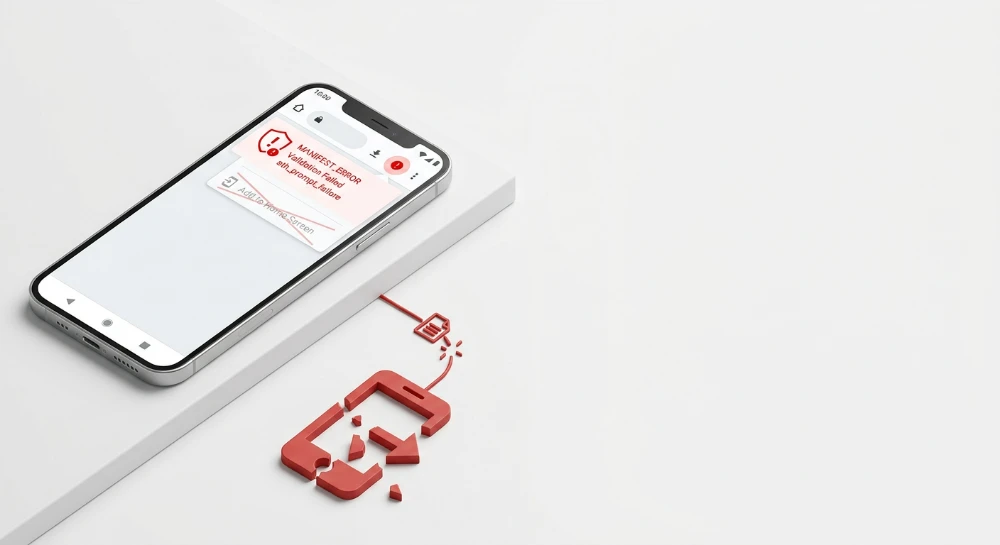
The Add to Home Screen installation sequence requires a validated JSON file delivered over an encrypted HTTPS connection. Understanding exactly how manifest errors of Progressive Web Apps break Home Screen adding involves analyzing the specific interactions between the DOM, the Service Worker registry, and the browser rendering engine. The beforeinstallprompt event fires only when all Chromium installability criteria pass strict internal validation.
The manifest file acts as the primary configuration dictionary for the application identity. The browser engine parses this file to extract the start URL, display mode, and icon arrays before rendering the native installation user interface. A single trailing comma in the JSON structure causes a parsing failure visible immediately in the Chrome DevTools Application panel. Browsers mandate a secure origin for this entire process. Delivering the web assets over an unencrypted connection blocks the service worker registration sequence and nullifies the installation attempt entirely.
Offline capability powered by a registered service worker containing a fetch event listener remains a non-negotiable architectural requirement for triggering the prompt.
Integration begins in the HTML document head using a standard link element to declare the manifest location. The browser reads the link relation attribute and triggers an asynchronous fetch request to retrieve the configuration payload. If the web server responds with a 404 HTTP status code or an incorrect MIME type such as text plain instead of application manifest json, the installation pipeline halts. Engineering teams often misconfigure the API routes responsible for generating dynamic manifests, which results in strict opaque response blocking. Debugging this mechanism requires isolating the manifest detection logs directly within the developer console rather than relying on front-end rendering indicators.
Add to home screen mechanics and installability criteria
The installation lifecycle operates silently during the initial page load execution. The browser engine evaluates the site against a strict set of heuristics before unlocking native installation capabilities. Passing these checks shifts the internal browser state to installable and allows interaction with the prompt mechanisms.
Chromium enforces a rigid checklist to prevent aggressive installation spam. The engine validates these baseline installability requirements before emitting any events.
- The document must be served over a secure origin.
- The application must not already be installed on the device.
- The architecture must include a valid manifest containing required identity parameters and display configurations.
- An active service worker must be registered and capable of handling offline fetch requests.
- The user must meet baseline engagement heuristics, typically requiring active interaction with the domain for a minimum threshold of time.
When the browser engine confirms all criteria are met, the window object fires the beforeinstallprompt event. This event serves as the critical interception point for engineering teams to control the installation user flow. Allowing the default browser behavior often results in an intrusive mini-infobar appearing at the bottom of the viewport on mobile devices. Developers intercept the event, call the default prevention method, and store the event object in memory.
window.addEventListener('beforeinstallprompt', (event) => {
  event.preventDefault();
  deferredPrompt = event;
  installButton.style.display = 'block';
});
This pattern defers the prompt until the user explicitly signals intent by clicking a custom UI element. Invoking the prompt method on the stored event object triggers the native browser dialog. The promise returned by the user choice property resolves with the outcome of the interaction, providing immediate feedback on whether the user accepted or dismissed the installation request.
Independent of custom DOM elements, Chromium utilizes algorithmic logic to render an install icon directly within the address bar. The omnibox install icon appears automatically on desktop platforms the moment the beforeinstallprompt event fires. The browser isolates this UI component from the main thread. Calling preventDefault on the event halts the automatic mini-infobar on mobile but leaves the address bar icon intact on desktop. Clicking this native icon executes the exact same prompt sequence as a custom button interaction.
| Event Name | Trigger Condition | Architectural Function |
|---|---|---|
| beforeinstallprompt | All installability criteria pass successfully. | Allows developers to defer the default prompt and bind it to custom UI. |
| userchoice | User clicks install or cancel on the native dialog. | Returns a promise resolving to accepted or dismissed state. |
| appinstalled | Installation completes successfully. | Signals the end of the lifecycle for analytics and state cleanup. |
Tracking successful conversions requires capturing the appinstalled event. This listener fires asynchronously after the native installation completes and the icon generates on the device home screen. Engineering teams bind this event to clear the deferred prompt variable, hide custom installation buttons, and dispatch conversion payloads to an external API. It executes regardless of whether the installation originated from a custom button, the address bar icon, or a browser menu option.
window.addEventListener('appinstalled', () => {
  deferredPrompt = null;
  console.log('Installation successful');
});Run a deep technical crawl to identify 4xx errors, missing meta tags, and indexation blockers.
Manifest integration and HTTP delivery failures
Browsers require an explicit declaration in the DOM to locate and process the configuration payload. Inject the <link rel="manifest" href="/manifest.json"> element directly within the <head> of the HTML document. Place this node high in the parsing order to trigger the fetch operation before heavy rendering tasks consume network bandwidth.
Pathing mistakes dictate failure rates. A relative URL often breaks during sub-directory navigation on dynamic applications. Use absolute paths starting from the root directory to guarantee consistent retrieval across all application routes.
Connecting the file resolves the DOM dependency but introduces strict server-side delivery requirements. Web servers routinely fail to identify .json or .webmanifest extensions out of the box, defaulting to text/plain or application/octet-stream. The browser engine rejects the payload immediately if the HTTP response lacks the correct MIME type.
The server must explicitly return the asset with a Content-Type header of application/manifest+json. Chromium environments also accept application/json as a valid fallback.
| Server Environment | Configuration File | MIME Type Implementation Logic |
|---|---|---|
| Apache | .htaccess | AddType application/manifest+json .webmanifest |
| Nginx | mime.types | types { application/manifest+json webmanifest; } |
| Node.js (Express) | server.js | res.setHeader('Content-Type', 'application/manifest+json'); |
CORS introduces a distinct category of fetch failures for authenticated environments. Browsers execute the manifest fetch as an anonymous request by default. The browser strips session cookies and authentication headers from the network call. If your file resides behind a secured endpoint, the server responds with a 401 Unauthorized or 302 Redirect to a login screen, destroying the installation lifecycle.
Injecting the crossorigin="use-credentials" attribute forces the fetch operation to include the active session context.
<link rel="manifest" href="/manifest.webmanifest" crossorigin="use-credentials">Server-side routing rules frequently sabotage manifest delivery via HTTP 404 errors. Single-page applications rely on catch-all routing arrays to manage virtual navigation. These wildcards intercept the request for the manifest file, executing a controller function instead of serving the static asset.
The browser receives an HTML string instead of the expected payload. It drops the installation process silently.
Engineering teams must map out and bypass several critical server-side delivery blocks causing payload failures.
- WAF Interception: WAF configurations flag rapid JSON fetch requests from automated crawlers and mobile agents as suspicious, returning a 403 Forbidden status.
- CDN Cache Misses: Aggressive edge caching policies strip custom headers, replacing the necessary application/manifest+json with a generic text header during distribution.
- Controller Routing: Catch-all frameworks fail to exclude static file extensions, routing the manifest fetch request into the dynamic view rendering pipeline.
- Trailing Slashes: Strict routing engines treat a URL with a trailing slash as a distinct directory, triggering an immediate HTTP 404 error when parsing absolute paths.
Isolating the static file directory from the primary application routing logic prevents payload corruption. Map the manifest directly to an exposed static assets folder governed by explicit server-side MIME type declarations.
JSON syntax and required manifest members validation
Browsers evaluate manifest files using rigid parser engines. A structural anomaly instantly aborts the evaluation pipeline. The rendering engine drops the payload entirely.
Engineers must treat this configuration file with extreme precision. Minor syntactical deviations that standard HTML or JavaScript engines might silently auto-correct will completely disable the installation trigger in Chromium and WebKit environments.
Critical members required for installability
Installability heuristics demand a mandatory baseline of configuration keys. Omitting any of these foundational members guarantees the application will remain unrecognized by the OS installation prompts.
- name: The primary application identifier presented to users during the installation prompt and within system management interfaces.
- short_name: The truncated text label positioned beneath the icon on the device home screen. This field is critical for devices where UI space is highly restricted.
- start_url: The absolute or relative entry point loaded into the OS window frame when the user launches the installed application. This path dictates the initial navigation state upon activation.
- display: The presentation mode parameter governing the UI shell layout and viewport constraints.
The display member directly manipulates the user experience by defining how the web application integrates with the native window manager. You must explicitly configure this value to separate the application architecture from standard browser tab navigation.
| Display Mode | UI Behavior and OS Integration |
|---|---|
| standalone | Removes the URL bar and browser navigation buttons. The application operates in a dedicated window, mimicking a native executable. |
| fullscreen | Consumes the entire physical device screen area. Hides all system status bars, clocks, and OS interface elements. |
| minimal-ui | Functions similarly to standalone mode but retains a minimal set of browser-provided navigation controls like back, forward, and reload buttons. |
Syntax faults and encapsulation errors
JSON parser implementations do not forgive formatting laxity. Developers conditioned by flexible JavaScript environments frequently introduce fatal syntax faults into the manifest payload during manual edits.
The most common rendering block originates from trailing commas. A trailing comma appended after the final key-value pair in an object or array immediately triggers a parsing exception. The browser halts execution on that specific line.
Malformed string encapsulation represents another high-frequency failure point. The specification mandates strict double quotation marks for all string values and property keys. Utilizing single quotes or leaving keys unquoted renders the entire document mathematically invalid to the parser.
{
  "name": "Enterprise Dashboard",
  "short_name": 'Dashboard', // Fatal execution halt: Single quotes encapsulate the string
  "start_url": "/app/",
  "display": "standalone", // Fatal execution halt: Trailing comma placed on the final element
}
Automated build pipelines must validate the payload against a strict JSON linter before deployment. Compilers parsing these assets should flag encapsulation and comma anomalies to prevent broken configuration files from hitting production servers.
Detect stealthy content rewrites, relevance drops, and injected spam links.
Icon array specifications and UI rendering blocks
The browser engine parses the icons member as an array of image objects to populate OS-level UI surfaces. Missing this array or populating it with invalid objects immediately disqualifies the application from meeting baseline installability requirements. The client device requires varying pixel densities to render app shortcuts without visual degradation across high-density displays.
Chromium enforces strict dimensional thresholds for installability. You must explicitly declare at least two exact resolutions in the sizes property of your image objects. The 192x192 image serves as the primary icon for device home screens and app drawers. The 512x512 asset acts as the foundation for the application splash screen. Declaring dimensions that deviate from these exact string values results in a silent rejection of the manifest payload during the validation phase.
MIME types and asset delivery
The parser maps the type attribute directly to standard MIME specifications. Declaring the file type explicitly prevents the browser from initiating redundant network requests to verify image formats. Support remains limited to established web formats.
- image/png: The industry standard for raster assets, ensuring transparency support and lossless compression across all OS environments.
- image/svg+xml: Provides vector resolution independence. Not all legacy mobile environments support SVG parsing for home screen shortcuts, requiring fallback PNG declarations within the array.
- image/webp: Supported by modern engines but often fails during native OS wrapping routines.
Maskable icons and adaptive OS interfaces
Modern Android environments aggressively crop home screen assets into standardized geometric shapes like circles, squicles, or teardrops. Legacy square icons suffer from forced letterboxing. The OS places the square asset inside a white circular container to force compliance with the global UI theme. You prevent this visual degradation using the purpose property.
Setting the value to any maskable instructs the OS to scale the asset and apply dynamic clipping paths safely. Maskable icons require a minimum safe zone. The core graphic must reside within the inner 40% of the canvas. The outer edges serve as bleed space that the OS can trim without cutting off the logo.
"icons": [
  {
    "src": "/assets/icon-192.png",
    "sizes": "192x192",
    "type": "image/png",
    "purpose": "any"
  },
  {
    "src": "/assets/icon-512-maskable.png",
    "sizes": "512x512",
    "type": "image/png",
    "purpose": "any maskable"
  }
]
Splash screen generation and color mapping
The moment a user taps the home screen icon, the browser synthesizes a native-feeling splash screen. This OS-level intervention prevents glaring white flashes while the engine parses the initial HTML and executes routing logic. The generation of this screen relies entirely on three specific manifest members: the 512x512 icon, background_color, and theme_color.
The compositor reads background_color to paint the entire viewport background before rendering begins. The central 512x512 icon drops directly into the middle of this colored plane. The engine extracts the theme_color to paint the surrounding OS-level components, specifically the mobile status bar and navigation bar. Omission of these color hex codes forces the system to default to stark white, breaking the immersive illusion of a standalone application.
| Manifest Member | UI Rendering Function | Validation Requirement |
|---|---|---|
| background_color | Paints the base layer of the synthetic splash screen during cold boots. | Must be a valid CSS color string (Hex, RGB, HSL). |
| theme_color | Dictates the color of the OS status bar and application header. | Must match the meta theme-color tag in the document head for seamless transitions. |
| purpose: maskable | Allows dynamic OS clipping of the icon asset without white padding. | Asset design must respect the 40% center safe zone. |
Service worker registration and offline support dependencies
A structurally perfect manifest payload will not trigger the installation sequence on its own. Chromium enforces a strict technical boundary for native app equivalence by demanding offline resilience. This mandate requires an active, correctly scoped Service Worker. The browser engine explicitly evaluates the network interception capabilities of this background script before authorizing the installation prompt. Applications failing this check remain standard web documents in the eyes of the browser engine.
The registration sequence initiates via the navigator API. The main execution thread calls
navigator.serviceWorker.register
, passing the direct path to the required script file. This execution offloads the worker environment to an isolated background process, preventing heavy caching logic from blocking DOM rendering or UI interactions.
if ('serviceWorker' in navigator) {
  navigator.serviceWorker.register('/sw.js', { scope: '/' })
    .then(function(registration) {
      // Registration logic completes
    }).catch(function(error) {
      // Registration rejected
    });
}
Scope defines the strict operational boundaries of the script. A file located in the root directory controls all requests across that specific URL space. Placing the script inside a subdirectory restricts its authority. If the manifest declares a start_url outside this authorized scope, the engine detects an immediate security and routing discrepancy. The installation sequence terminates. Control over the entry page is completely revoked.
Passing the initial registration phase does not satisfy the installability criteria. The background script must include a discrete
fetch
event listener. This listener intercepts outgoing network requests, serving as the technical foundation for offline support. The engine expects this block of code to define exact cache retrieval parameters.
self.addEventListener('fetch', function(event) {
  event.respondWith(
    caches.match(event.request).then(function(response) {
      return response || fetch(event.request);
    })
  );
});
Without this event listener, the browser classifies the worker as inert. The engine parses the installed script specifically looking for the fetch handler to verify that the application can serve cached HTML assets during network loss. Omission of this handler halts the entire manifestation process. The beforeinstallprompt event remains entirely dormant.
Several architectural flaws routinely block successful registration and subsequent offline validation. Review the following matrix of registration failures mapping directly to blocked installation prompts.
| Registration Error | Architectural Cause | Impact on Installability |
|---|---|---|
| Scope Mismatch | Worker placed in a subdirectory while start_url points to the root URL. | Engine revokes control over the entry page. The beforeinstallprompt is blocked. |
| Missing Fetch Handler | Script registers successfully but lacks the self.addEventListener('fetch') block. | Fails the strict offline capability check. Install prompt suppressed. |
| Parse Errors | Syntax errors in the worker file preventing successful byte-code compilation. | Registration promise rejects immediately. Worker never installs. |
| Bypass to Network | Fetch handler exists but only passes requests to the network without fallback cache logic. | Passes baseline browser checks but fails practical offline delivery under load. |
Ensuring the background script executes flawlessly requires rigid adherence to specific implementation patterns. Implement the following structural requirements to maintain an active registration state.
- Serve the worker script from the domain root to ensure maximum URL scope coverage across all site categories.
- Include a valid fetch event listener that returns a status code 200 response even when the network interface drops completely.
- Keep the initial installation and activation logic lightweight to prevent timeout rejections during the registration promise phase.
- Manage cache versioning strictly within the install and activate lifecycle events to ensure the script updates without manual user intervention.
A failed registration cascades directly into severe user experience degradation. If the worker fails to install, activate, or intercept requests, the core installation loop breaks instantly. The application remains permanently trapped within the standard browser tab environment.
SEO structure and reciprocal link analyzer
Detect orphan pages, deep click depths, and toxic reciprocal links built by careless agencies.
Cross-Browser compatibility and OS-Specific fallbacks
Chromium environments execute a deterministic installation flow based on strict criteria validation. The browser parses the background configuration, evaluates network interception logic, and dispatches the native UI prompt through standard API hooks. Safari on Apple devices deliberately fragments this logic. The iOS environment suppresses automated prompts entirely, forcing users through manual routing via the system Share menu.
Deploying universal web architectures requires mapping proprietary HTML nodes to override Safari's default rendering engine.
Implementing safari rendering overrides
Relying exclusively on standard web configuration files leaves iOS users stranded in standard browser tabs. Apple engine constraints demand hardcoded legacy elements directly in the document head to bridge this integration gap.
-
Inject
<meta name="apple-mobile-web-app-capable" content="yes">to activate standalone rendering mode. -
Include
<link rel="apple-touch-icon" href="/icon-192.png">to define the exact home screen shortcut graphic.
Missing the capabilities meta tag breaks the immersive user experience. The interface will forcibly retain the top URL bar and the bottom navigation toolbar, consuming critical vertical viewport space. Omitting the dedicated touch icon declaration forces Safari to generate a heavily pixelated screenshot of the current viewport as the shortcut image. This destroys brand presentation instantly.
| Architectural Component | Google Chrome Execution | Safari iOS Execution |
|---|---|---|
| Installation Trigger | Automated API event dispatch upon criteria match. | Strictly manual execution required via Share sheet. |
| UI Rendering Mode | Parses configuration file to drop browser chrome. | Requires explicit proprietary meta tag injection. |
| Shortcut Graphic Generation | Extracts exact dimensions from designated icon array. | Requires explicit proprietary relational link tag. |
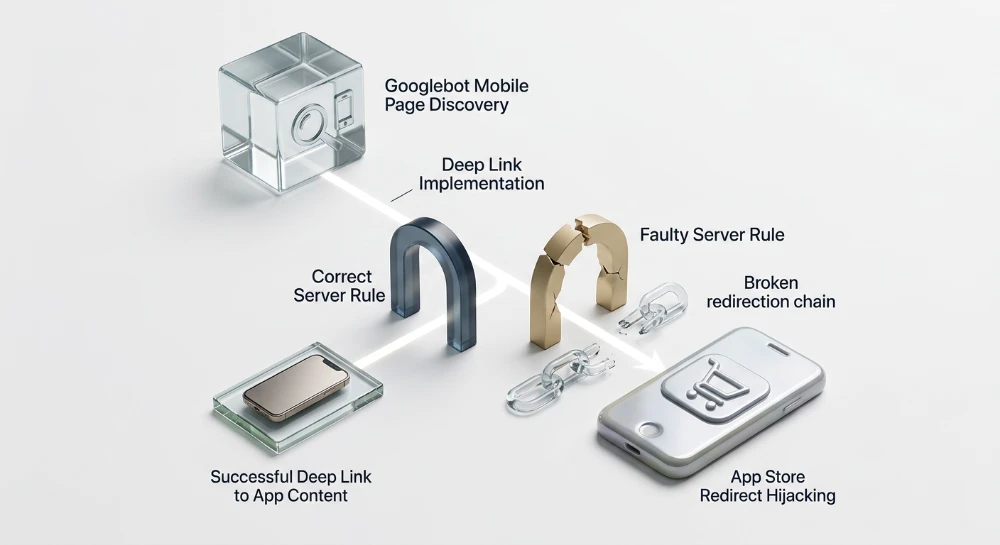
Native APK redirection logic
Web infrastructures frequently serve as direct acquisition channels for compiled binaries. Engineering teams can hijack the standard browser prompt to force a native application installation instead of caching the web architecture.
Setting the
prefer_related_applications
boolean alters default Chrome execution logic.
"prefer_related_applications": true,
"related_applications": [
  {
    "platform": "play",
    "url": "https://play.google.com/store/apps/details?id=com.example.mobile",
    "id": "com.example.mobile"
  }
]
When the engine reads this configuration, it suppresses the standard shortcut generation prompt. It immediately parses the adjacent array to locate the matching package ID. Chrome pushes an intent directly to the Google Play Store, bypassing the web cache installation entirely. Misconfiguring the package ID or platform string results in a silent failure, returning the user to standard web tab behavior without any installation prompt.
Diagnostic workflows: Chrome DevTools and lighthouse audits
Engineers rely on direct browser telemetry to isolate installation failures. Guessing syntax errors extends downtime and bleeds acquisition traffic. The Chrome DevTools suite provides deterministic output for payload parsing and execution sequence blocking.
Application panel inspection
The Application panel serves as the primary diagnostic interface for installability validation. Open DevTools and navigate directly to the Application tab. Expand the Manifest pane located under the Application directory.
This UI renders the exact configuration the browser engine successfully ingested. Blank fields or a missing Identity section indicate a catastrophic parsing failure. The browser engine halted execution before evaluating the installation lifecycle. Engineers must verify the parsed output exactly matches the server payload.
- Identity parameters verifying precise string ingestion and character encoding.
- Presentation values confirming viewport rendering modes and orientation locks.
- Icon array extraction displaying matching graphic paths and density assignments.
Console drawer error extraction
Silent failures do not exist in the Chromium engine. Syntax deviations and routing anomalies push direct warning codes to the Console drawer. Activating the Issues tab alongside the Console filters standard API noise to highlight specific payload blocks.
Engine parsing throws specific exception flags when strict criteria fail.
| Console Error Code | Technical Trigger | Resolution Architecture |
|---|---|---|
| manifest-detection | Engine cannot locate or fetch the file via the DOM relational link. | Validate URL routing and verify HTTP status codes. |
| duplicate field src | JSON array contains identical graphic paths for different density requirements. | Isolate icon objects and assign unique file assets. |
| Site cannot be installed | Missing mandatory parameters such as start_url or required display modes. | Inject the missing strict requirement into the JSON object. |
Lighthouse PWA execution
Automated validation scales diagnostic workflows across complex environments. Lighthouse integrates directly into the DevTools suite to audit baseline installability against strict engine requirements. Navigate to the Lighthouse tab, check the PWA category, and initialize the audit.
Device Mode execution is mandatory. Desktop emulation bypasses critical mobile-specific rendering triggers. The engine evaluates viewport scaling, service worker caching, and manifest integrity in a single pass. A failed Lighthouse audit directly correlates to a blocked installation prompt in production.
Remote debugging configurations
Local emulation frequently fails to replicate hardware-level OS intent handling. Remote debugging binds physical device browser environments directly to the desktop diagnostic interface. This architecture exposes real-world caching behaviors and native execution flows.
Physical hardware testing isolates OS-specific installation behaviors.
- Enable Developer Options and USB debugging on the physical mobile device.
- Connect hardware to the desktop environment and authorize the RSA key prompt.
- Navigate to chrome://inspect/#devices in the desktop browser engine.
- Configure port forwarding to route local staging environments to the mobile client.
The desktop DevTools instance now mirrors the physical device rendering engine. Engineers extract real-time installation prompts, trace exact API caching behaviors, and validate native intent execution without relying on synthetic viewport emulation.